
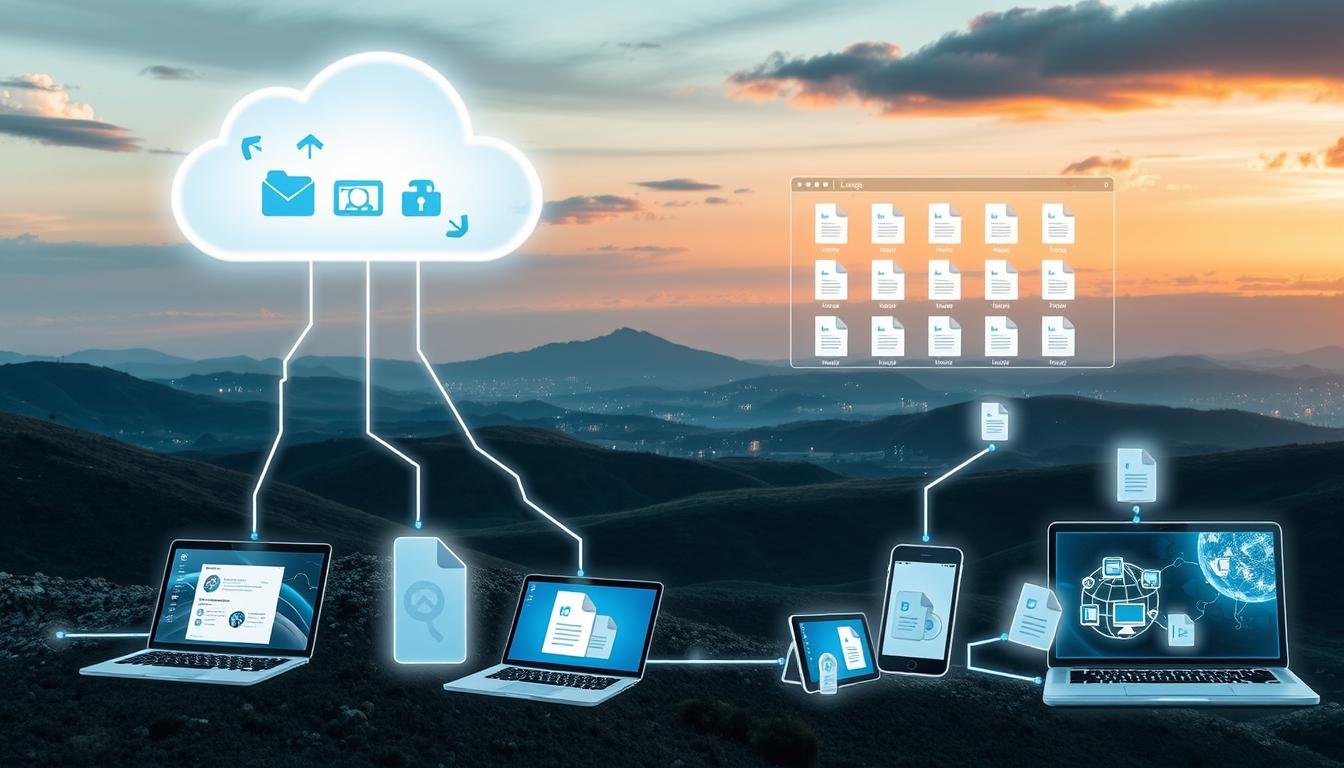
Have you ever tried to email a file and got told it’s too big? It’s a common problem. Most email services have size limits on attachments. For example, Gmail and Yahoo only let you send files up to 25MB. So, that 100MB video won’t go through via email.
The good news is you have other options. Many file sharing, cloud storage, and file-transfer websites can help. Here are some ways to send big files online.
Key Takeaways
- Email services like Gmail and Yahoo have file size limits, often around 25MB.
- Cloud storage providers offer free storage, but with limited space – Box (10GB), Dropbox (2GB), Google Drive (15GB), iCloud (5GB), and OneDrive (5GB).
- Online file transfer services like DropSend, MyAirBridge, Filemail, and WeTransfer allow sharing larger files for free or with paid plans.
- Secure file transfer options like using a VPN can ensure privacy, but may impact connection speed.
- Compression tools like 7-Zip can reduce file sizes before uploading or transferring.
Introduction
We’ve all been in this situation before. You’ve picked out the perfect images for your project, but your email can’t handle the size. Most email accounts have strict limits on attachment sizes. For example, Gmail only allows 25MB attachments, while Outlook tops out at 20MB.
Trying to fit large files into these small spaces is a real challenge. Even if you manage to send them, they can take up a lot of space in your email. This can be very frustrating.
But, there’s good news. There are many ways to share large files without hitting these limits. Cloud storage services offer free space, and there are tools made just for sending big files. These options make it easier to share files online.
Whether you’re working on a project or just want to share photos, knowing how to share large files is key. It saves time and reduces stress. In the next sections, we’ll look at the best ways and tools to send big files, no matter their size.
Store Files Online
Uploading large files to a cloud storage service is a simple solution. Many services offer free tiers with lots of storage. For example, Box gives you 10GB for free, while Dropbox and Google Drive offer 2GB and 15GB respectively. iCloud and OneDrive both provide 5GB of free storage.
It’s key to remember that these cloud storage services have upload limits. Before using the free tier, check if your file fits within those limits. If not, you might need to pay for a bigger plan to share your file successfully.
Popular Cloud Storage Services and Their Free Storage Limits
- Box: 10GB of free storage
- Dropbox: 2GB of free storage
- Google Drive: 15GB of free storage
- iCloud: 5GB of free storage
- OneDrive: 5GB of free storage

“Testing criteria for the best ways to share big files include ease of use, pricing, security, file size limits, and reliability.”
Choosing the right cloud storage service is crucial. Look at file size limits, transfer speed, and security. By knowing what each service offers, you can pick the best one for your needs. This ensures a smooth experience when sharing large files.
Upload Large Files With Gmail
Have you ever tried to send big files via email and hit the attachment size limit? Gmail has a way to help you share large files easily.
Gmail lets you attach files up to 25MB. But, with Google Drive, you can send files up to 10GB. Just start a new email, attach your file, and Google will upload it to Google Drive. Then, it creates a link you can share.
Here’s the cool part: your recipient doesn’t need a Google account to get the file. They just click the link in your email to view or download it. If your file is too big, you can send it the old-fashioned way or use a file-sharing service.
The Gmail mobile app makes sharing big files easy too. You can attach files from Google Drive, no matter where you are.
“Gmail’s integration with Google Drive has been a game-changer for me. It’s now easier than ever to send large files to colleagues and clients without the hassle of size restrictions.”
So, when you need to share a big file, like a presentation or video, Gmail has your back. With Google Drive, you can keep your email workflow smooth and efficient.
Upload Large Files With Yahoo Mail
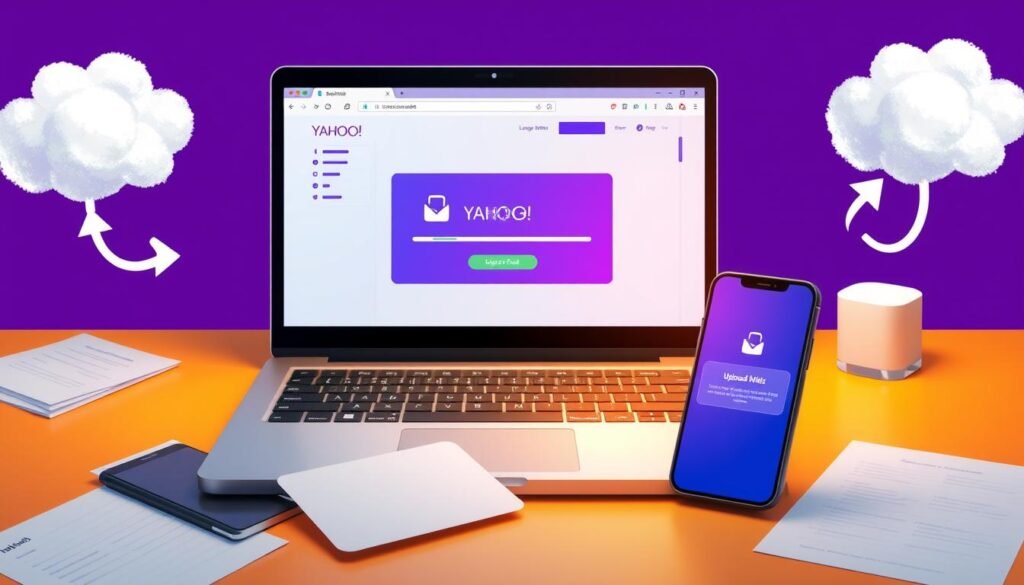
Sending big files via email can be tough, especially with Yahoo Mail’s size limits. But, Yahoo Mail has a smart way to help you share large files.
When you try to attach a big file, Yahoo Mail asks you to save it to Google Drive or Dropbox. Pick your cloud storage, upload the file, and then go back to your email. Click “File Attachment” and choose the file from Google Drive or Dropbox. This makes the file appear as an attachment in your email.
This trick lets you share files of any size, as long as they can be uploaded to Google Drive or Dropbox. Your recipient can get the file from the cloud, making sharing easy.
Keep in mind, sharing files might reduce their quality if you compress them. For better results, use a service like FileWhopper or Dropbox Transfer. They have bigger size limits and more features for safe and easy file sharing.
“Yahoo Mail’s integration with cloud storage services makes it easy to share large files, even if they exceed the email provider’s attachment size limit.”
So, if you’re sending a big file with Yahoo Mail, don’t worry about size limits. Use the cloud storage options Yahoo Mail offers, and sharing your files will be a breeze.
Upload Large Files With Outlook
Having trouble sending big files with Outlook? Don’t worry, Microsoft has a simple fix. Outlook works well with OneDrive, making it easy to share big files with others.
When you try to send a big file, Outlook asks you to upload it to OneDrive. Just pick “Upload and share as a OneDrive Personal link.” Then, others can see the file right from your OneDrive.
This feature is really handy. Outlook’s free version gives you 15 GB of OneDrive storage. If you need more, you can get up to 1 TB with a subscription. This means you have plenty of space for big files.
Working together is also easier with Outlook and OneDrive. People in the same company can easily share files through Office 365. This makes teamwork more efficient.
But, uploading big files can take some time. It depends on your internet and how big the file is. Big files might take a few minutes to a couple of hours to upload.
In short, Outlook and OneDrive make sharing big files easy. You get lots of storage and better teamwork. So, when Outlook says you can’t send a big file, use OneDrive for a better experience.
How to Share Large Files Online: The Best Methods and Tools
Online File Transfer Services
Instead of using email with its size limits, try third-party file transfer services. These services let you upload and share large files easily. Just upload your file, enter your and the recipient’s details, and the service will send a download link.
The size limit varies by service and plan. WeTransfer, Filemail, and Send Anywhere offer free and paid plans. They can handle transfers up to 200GB or more.
| Service | Free Plan | Paid Plan | Key Features |
|---|---|---|---|
| Filemail | Max transfer size: 5GB File availability: 7 days Storage: 5GB, 2 uploads/day |
PRO: $10/month (20% discount) Max transfer: 250GB File availability: 30 days Storage: 1TB, unlimited recipients and downloads |
Easy to use, fast file transfers, available on iOS and Android |
| Raysync | Not available | SMB: $699/year (up to 10 users) Each user: $11.98/year Enterprise: Custom pricing |
Secure large file transfers, global acceleration, no file size limits |
| Masv | Not available | Pricing starts at $0.25/GB 160 servers worldwide for fast transfers |
Specialized for video and graphic file transfers |
These services make sharing large files easy, whether for work or personal use. They offer great features and flexible pricing. You can find the perfect tool for your needs.

“Filemail has been a game-changer for our business. The ease of use and reliable file transfers have streamlined our workflow and saved us a tremendous amount of time.” – Deborah Alvino, CLVS (Coastal Legal Video)
Popular File Transfer Services
Sharing large files online is easier with a few top services. DropSend and MyAirBridge are two favorites.
DropSend
DropSend makes sending big files simple. You can send a file via email with a link for your recipient. It offers various plans, including a free Lite option. This lets you share up to 4GB files, with five sends a month.
MyAirBridge
MyAirBridge is another top choice. You can send a file via email or share a link with anyone. Its free plan lets you send files up to 20GB, perfect for big transfers.
Both services make sharing large files easy. They’re great for work or personal use. They help you avoid email attachment limits and ensure files get to their destination smoothly.
More File Transfer Options
There are many ways to share big files online, not just cloud storage. These options are great for files that are too big for free storage.
Bitwarden Send is a secure way to share files up to 500MB with a paid plan. It’s perfect for those who value privacy and safety.
Wormhole lets you share files up to 10GB safely. It uses end-to-end encryption to keep your data private.
SendBig is free and lets you share files up to 30GB. It’s good for big digital files. You can get more features with a Pro account.
ToffeeShare shares files directly between devices without an intermediary. It’s great for big media files or sensitive data.
Free storage limits can be a problem, but these options offer solutions. You can choose based on security, size, or ease of use.
| File Transfer Service | Free File Size Limit | Paid Plan File Size Limit |
|---|---|---|
| Bitwarden Send | N/A | 500MB |
| Wormhole | 10GB | N/A |
| SendBig | 30GB | Unlimited |
| ToffeeShare | Unlimited | N/A |
These options offer different ways to share big files online. They meet various needs and preferences. You can find the right tool for your needs.
Secure File Transfers
Sharing large files online needs to be secure. Using a VPN is a smart choice to protect your data. A VPN keeps your location private and encrypts your data, adding security. But, it might slow down your connection a bit.
FTP and SFTP are also good for secure file transfers. FTP is easy for big files, but it’s not as secure as SFTP. SFTP uses secure shell encryption for safer transfers. This is great for sensitive information.
Choosing a VPN, FTP, or SFTP for file transfers is key. By being careful, you ensure your files are safe. This means your documents, photos, videos, and more will reach their destination securely.