
If you have a modern smartphone, like the iPhone 14 Pro Max or the Galaxy S23 Ultra, you have a mobile hotspot. This lets you connect your computer, tablet, smart TV, and other devices to the internet. It’s great when you can’t find Wi-Fi but still need to get online.
A mobile hotspot works like your home Wi-Fi. Just turn it on and connect with your device using the hotspot password. Your phone shares its 4G or 5G network, giving your device internet. It’s not as fast as Wi-Fi, but it’s handy for quick tasks like emailing documents or downloading files.
This guide will show you how to set up and use mobile hotspot on Android and iOS devices.
Key Takeaways
- Modern smartphones like iPhone 14 Pro Max and Galaxy S23 Ultra have built-in mobile hotspot capabilities.
- Hotspot allows you to share your phone’s internet connection with other devices like laptops, tablets, and smart TVs.
- Turning on the hotspot is easy, and connecting other devices requires a password.
- Hotspot speeds may not match regular Wi-Fi, but it can be a convenient way to get online when you don’t have access to a wireless network.
- Both iOS and Android devices offer mobile hotspot features with various options for connectivity and security.
What is a Mobile Hotspot?
A mobile hotspot lets you share your phone’s internet with other devices. This includes laptops, tablets, or phones. It turns your phone into a mini Wi-Fi network, using your data plan.
This is great when you’re away from a stable Wi-Fi network. It keeps you connected to the internet wherever you are.
Understanding Mobile Hotspots
Mobile hotspots offer portable wifi and on-the-go connectivity. They make your phone a wireless internet center. This lets you share your data with many devices at once.
This is super useful when Wi-Fi is scarce or unreliable.
Advantages of Using a Mobile Hotspot
The key benefits of using a mobile hotspot are:
- It keeps you online, even without Wi-Fi.
- You can share your internet with others, keeping everyone connected.
- It’s a portable Wi-Fi network, always with you, ready to share your data.
“Mobile hotspots are powerful devices capable of handling multiple online tasks simultaneously, thanks to their 5G capabilities and built-in Wi-Fi adapter for easy data transfer with minimal setup.”
Checking if Your Phone Supports Mobile Hotspot
Most smartphones today can act as a mobile hotspot. But, not all phone plans let you do this. To see if your phone can, check your plan or call your carrier.
Many plans now let you use mobile hotspot without extra cost. But, you might hit a data limit or see slower speeds. Some carriers offer extra data if you use it a lot.
For example, AT&T’s Unlimited Premium plan gives you 50 GB of hotspot data per month. Verizon’s Unlimited Ultimate plan offers 60 GB of hotspot data per month, with a chance to add 100 GB more. T-Mobile’s Go5G Next plan gives you 50 GB of hotspot data, plus unlimited talk, text, and data.
Mobile hotspots use a lot of data and battery. So, make sure you have enough data and power to avoid extra costs or running out of battery.
| Carrier | Hotspot Data Allowance |
|---|---|
| AT&T | 50 GB per line per month |
| Verizon | 60 GB per line per month (with option to add 100 GB) |
| T-Mobile | 50 GB per line per month |
Setting Up a Mobile Hotspot on iOS
Setting up a mobile hotspot on your iPhone is easy. It lets other devices use your internet. First, go to your iPhone’s Settings and find “Personal Hotspot”. Turn on “Allow Others to Join” to start your hotspot.
Enabling Personal Hotspot on iPhone
When Personal Hotspot is on, you’ll see a Wi-Fi password. You can use this password or change it. Pick a strong password to keep your hotspot safe.
Connecting Devices to iPhone Hotspot
To connect devices, go to Wi-Fi settings on the device you want to connect. Choose your iPhone’s name and enter the password. You can also use Bluetooth or a USB cable. This way, your devices can use your iPhone’s internet.
Some apps might not work well with your hotspot. Also, how many devices can connect depends on your carrier and iPhone model.
For better hotspot use, try Family Sharing. It lets family members join your hotspot easily. This is great when many devices need internet at once.
By following these steps, you can set up your iPhone’s hotspot. This lets other devices use your internet whenever needed.
How to Set Up and Use Mobile Hotspot on Your Smartphone: A Guide for Android
Setting up a mobile hotspot on your Android device is easy. It lets you share your internet with other devices when you’re away from home. This is great for working remotely, traveling, or sharing your internet with others.
To start, go to your Android device’s Settings. Look for the Connections or Network & Internet section. Tap on Mobile Hotspot and Tethering to access your hotspot settings.
In this menu, you can enable the mobile hotspot. You can also set a network name (SSID) and password. Plus, choose how devices connect, like Wi-Fi, Bluetooth, or USB tethering.
After setting up your hotspot, turn it on. Other devices can connect to it like a regular Wi-Fi network. Just give them the network name and password.
Using your Android’s mobile hotspot can use a lot of battery. It needs constant internet and data transfer. To save battery, keep your phone plugged in while tethering.
The steps for setting up a mobile hotspot might change based on your device and software. But the basics here should help you get started.
Configuring Mobile Hotspot on Android
As the world sees more eSIM connections, setting up your Android hotspot is key. It’s useful for sharing internet at home or abroad. Knowing how to use your Android hotspot can save you money and keep you connected.
Enabling Mobile Hotspot on Android
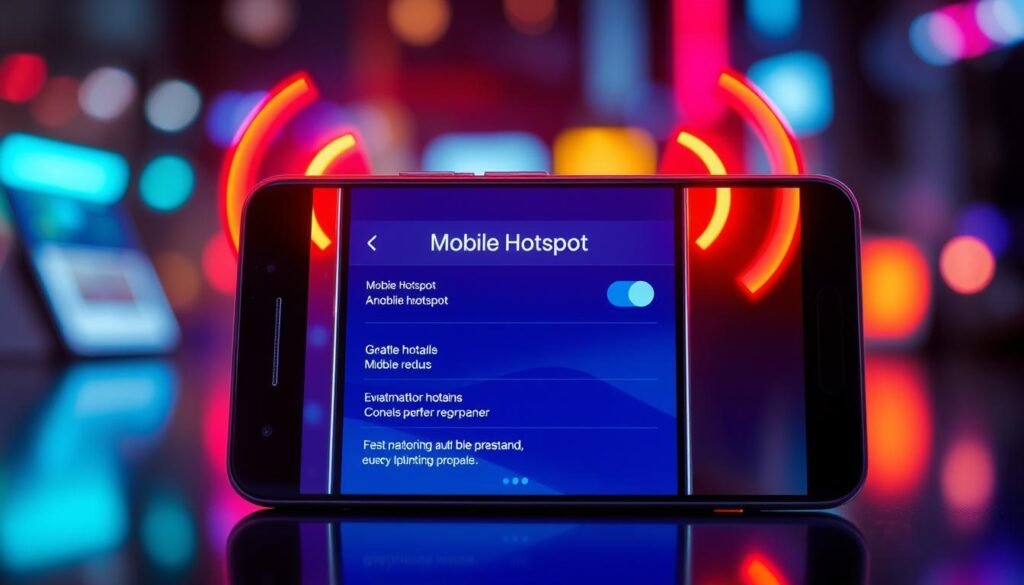
To start, go to your Android’s Settings menu. Then, choose Connections and then Mobile Hotspot and Tethering. Here, you can turn on Mobile Hotspot to share your phone’s internet. This is easy for most Android users.
Customizing Hotspot Settings
After turning on your hotspot, you can make it better. Change the Name and Password to keep it safe. Pick the best Wi-Fi Band for faster speeds. Also, use MAC address filtering to block unwanted access.
Configuring your Android hotspot right can make sharing internet easy and safe. It works well at home, on trips, or in remote places. With the right settings, you get the most out of mobile hotspot technology.
Connecting Devices to Your Android Hotspot
After setting up your Android mobile hotspot, it’s time to connect other devices. This lets you share your internet connection easily. It’s just like connecting to a regular Wi-Fi network.
To connect a device, go to its Wi-Fi settings. Choose your phone’s hotspot name from the list. Then, enter the password you set up earlier. Android lets you connect up to 10 devices to your hotspot. But, adding more devices might slow down your connection.
Keep an eye on your mobile data when using the hotspot. It can use up your data plan fast. To avoid extra charges, turn on data monitoring or set limits.
| Feature | Capability |
|---|---|
| Maximum Devices Connected | Up to 10 |
| Average Devices Connected | 3 |
| Hotspot Usage Increase (2 years) | 25% |
Whether you need to connect your laptop to your Android hotspot or share with friends, it’s easy. This feature is great for staying connected on the move.
“The mobile hotspot feature on my Android phone has been a lifesaver when I need to stay productive on the road or share my internet connection with multiple devices.”
Securing Your Mobile Hotspot
In today’s world, mobile internet is key. Securing your mobile hotspot is vital. With more people using mobile hotspots, keeping your data safe is crucial.
Protecting your hotspot from unauthorized access is key. This ensures your data stays safe and your internet experience is smooth.
Creating a Strong Hotspot Password
Start by making a strong, complex password for your hotspot. Don’t use personal info like birthdays or pet names. Instead, mix letters, numbers, and special characters.
This makes it tough for others to guess your password. It keeps your hotspot safe from unwanted access.
Blocking Unauthorized Access
After setting a strong password, watch who’s connecting to your hotspot. Check the list of connected devices and block unknown users. This stops them from getting into your network and risking your online safety.
Some phones let you turn off the hotspot when not in use. This cuts down on risks and boosts your hotspot’s security.
“Securing your mobile hotspot is crucial in today’s digital landscape, where data protection is paramount.”
By following these tips, you can keep your mobile hotspot secure. This protects your devices from unauthorized access. You’ll have a safe and reliable internet connection wherever you go.
Tethering Options: USB, Bluetooth, and Ethernet
Your smartphone can share its internet with other devices in different ways. You can use USB tethering, Bluetooth tethering, and Ethernet tethering. Each method has its own benefits and things to think about.
USB Tethering: Wired Convenience
USB tethering connects your phone to another device with a USB cable. It gives faster speeds and reliable connectivity. But, you need to keep devices together, which might make it hard to move around.
Bluetooth Tethering: Wireless Flexibility
Bluetooth tethering lets you share your phone’s internet without cables. It’s great for moving around, but it’s slower and only works for one device at a time. Also, it might not be as secure, so make sure your connection is safe.
Ethernet Tethering: Wired Reliability
Some Android phones can use Ethernet tethering with a USB Ethernet adapter. It gives a stable, low-latency connection for devices without Wi-Fi, like smart home gadgets or old computers. It’s good for places with weak wireless signals.
When picking a mobile hotspot tethering method, think about speed, ease, and safety. Try out different options to see what works best for you and your devices.
Optimizing Battery Life While Using Hotspot
Using your smartphone as a mobile hotspot can quickly drain the battery. It makes your device constantly send out a Wi-Fi signal and share its data. To save battery life, there are a few things you can do.
First, keep your phone charged or plugged in while using the hotspot. This way, your device won’t run out of power. Also, turn off the hotspot when you’re not using it. You can set your phone to automatically turn off the hotspot when no devices are connected.
Reducing the number of devices connected to your hotspot can also help. The more devices, the more battery it uses. Try to limit the devices or ask others to find other internet sources.
Some tethering methods use more battery than others. USB and Bluetooth tethering use less battery than Wi-Fi hotspot. If you can, use these methods to conserve battery while using mobile hotspot.
| Tethering Method | Battery Drain Impact |
|---|---|
| Wi-Fi Hotspot | Higher battery drain |
| USB Tethering | Lower battery drain |
| Bluetooth Tethering | Lower battery drain |
By following these tips, you can effectively manage battery drain from hotspot. This way, you can use your device’s hotspot longer. The key is to balance your need for connection with your device’s power use.
“Conserving battery life is essential when relying on your smartphone’s mobile hotspot. With the right strategies, you can extend hotspot battery life and stay connected on the go.”
Conclusion
In this guide, we’ve covered the basics of setting up a mobile hotspot on your smartphone. This applies to both Android and iOS devices. You’ll learn how to share your internet with other devices for work, travel, or staying connected on the go.
Setting up a mobile hotspot is easy. First, make sure your phone is compatible. Then, configure the settings correctly. This way, you can share your internet connection whenever you need it.
Key tips for setting up a mobile hotspot include keeping your hotspot password strong. Also, optimize your battery life to keep the hotspot running long. Use data-saving techniques to manage your data effectively. These steps will help you use your smartphone’s mobile hotspot to stay connected anywhere, anytime.
Mobile hotspots are great because they let you connect multiple devices without public Wi-Fi. They can also save you money by sharing a single data plan. By learning how to use mobile hotspots, you’ll have seamless internet access wherever you go.