
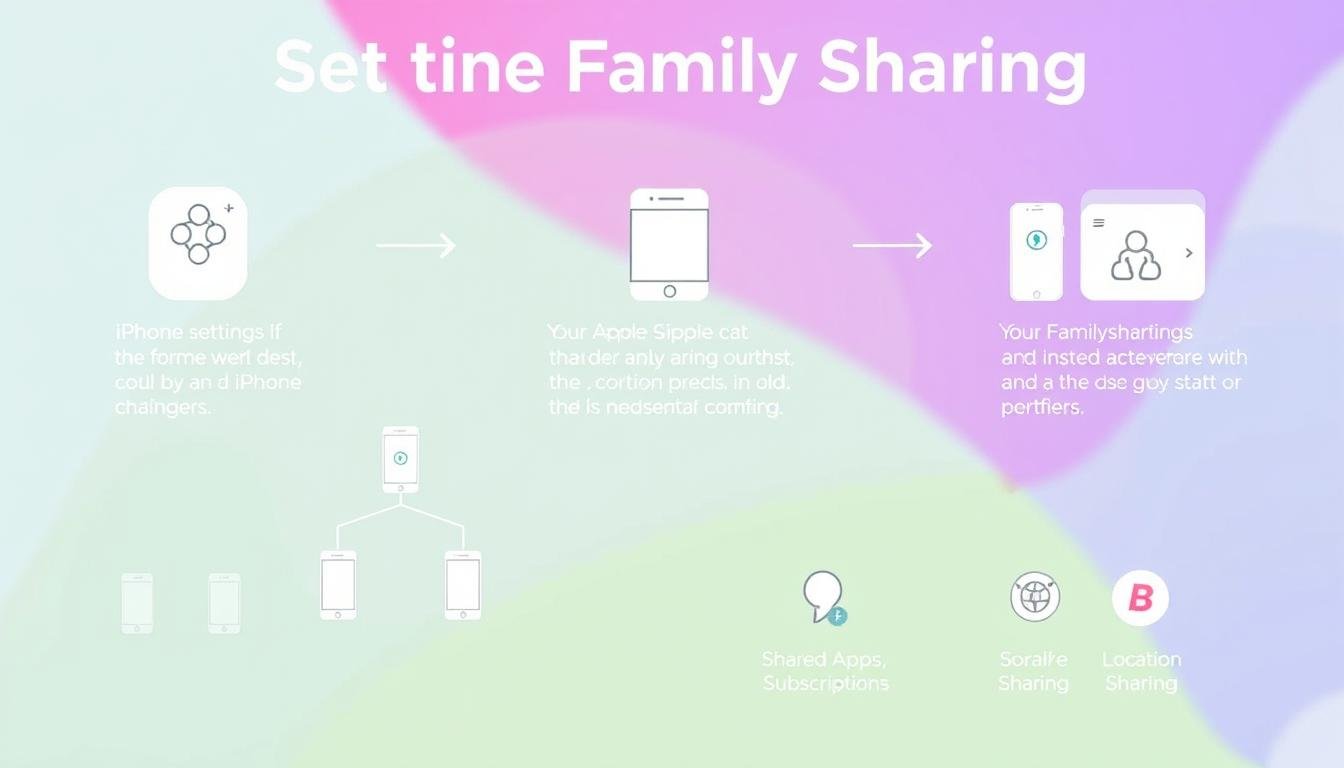
Setting up Family Sharing on your iPhone can make life easier for your family. It lets up to six family members share music, movies, TV shows, apps, books, and subscriptions like iCloud+ without mixing personal info. This way, everyone keeps their own account, making it easy to share and keep things private.
As the family organizer, I handle the setup. This includes inviting family members, managing purchases, and creating accounts for kids under 13.
This guide will show you how to set up and manage Family Sharing on your iPhone. It’s perfect for sharing subscriptions or setting up parental controls. It will help you create a digital space that suits your family’s needs.
Key Takeaways
- Family Sharing allows sharing of various purchases without sharing an Apple Account.
- The family organizer manages Family Sharing and is responsible for purchase sharing.
- Invitations can be sent via Messages, email, or in person.
- Each individual can only belong to one family group at a time.
- Not all content is eligible for sharing through Family Sharing.
- Age requirements and payment methods may vary by region.
- Account creation for children under 13 is facilitated by family organizers.
Understanding Family Sharing on iPhone
Family Sharing on iPhone makes it easy for families to share content and services. It lets users share music, movies, apps, and books. It also includes subscriptions like iCloud+, so everyone can access them without needing their own account.
The family organizer has key roles and permissions. They can set up Family Sharing while keeping their Apple ID private. They can also create Apple Accounts for kids under 13, helping manage their online activities. Parents can also use the Ask to Buy feature to approve or deny purchases for their kids.
Apple Cash Family lets kids and teens handle money under parental supervision. Screen Time helps families track device use and set limits. Quick Start makes setting up a child’s device easy, with the right controls. The Find My app also lets families track each other’s devices.
Family Sharing benefits up to six members, making it easier to work together. All purchases are shared, creating a shared resource pool. Adults keep control of their accounts but enjoy shared benefits. This system makes managing settings and subscriptions simple for everyone in the group.
Here’s a quick overview of some important aspects:
| Feature | Description |
|---|---|
| Apple Cash Family | Children can send/receive money with parental oversight. |
| Ask to Buy | Parents must approve purchases made by child accounts. |
| Screen Time | Monitor and set limits on app usage for children. |
| Location Sharing | Track family members’ devices through Find My app. |
| Shared Purchases | All family members access purchases made by any member. |
| Family Group Size | Up to six members can be part of a family group. |
How to Set Up and Manage Family Sharing on Your iPhone: A Step-by-Step Guide
Setting up family sharing on iPhone is easy. It lets family members share subscriptions and more. First, I open the Settings app. Then, I tap my name at the top to get to Apple ID settings. There, I choose “Family Sharing” and follow the on-screen steps to create our family group.
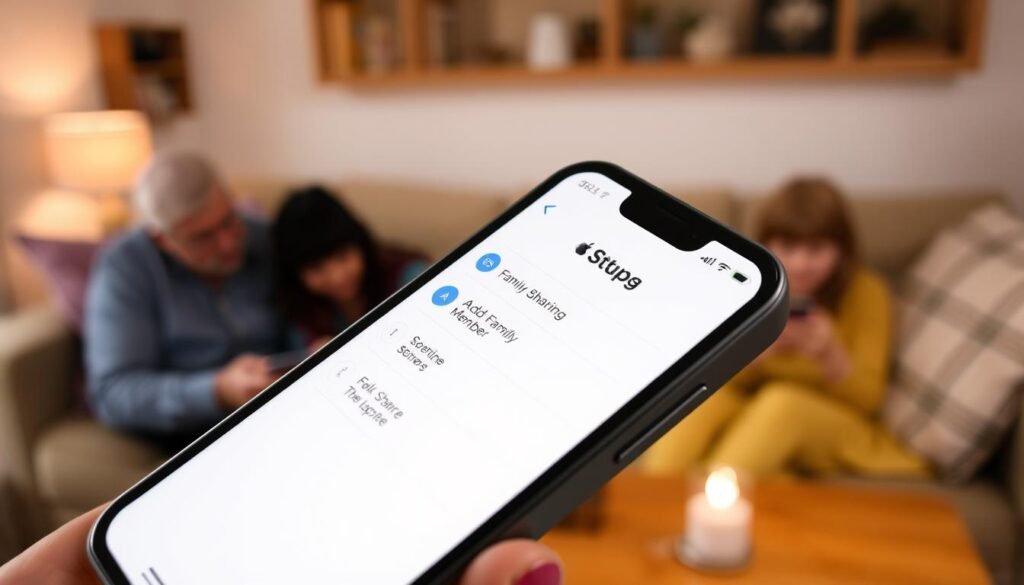
Remember, the family organizer needs a valid payment method. This makes sure we can share purchases smoothly. Our family can have up to five members. We can share Apple services like music, TV shows, games, and iCloud storage.
Managing family sharing is simple. The family organizer can remove members or stop sharing. To remove someone, I go to Settings > [my name] > Family Sharing and pick the member. If a family member wants to leave, they can do so by going to Settings > [my name] > Family Sharing and tapping “Stop Using Family Sharing.”
By following these steps, my family can enjoy shared subscriptions and individual iCloud storage. Storage plans cost $2.99 for 200GB and $9.99 for 2TB. This setup makes life easier and more fun for all of us.
Starting a Family Group
Starting a family sharing group is easy. Just go to the Settings app on your iPhone. Tap on your name at the top and choose Family Sharing. This lets you create a new family group quickly.
Once the group is set up, you become the organizer. This means you handle family sharing tasks and check on all purchases. You can share apps, movies, music, and books with your family without extra costs.
This sharing helps everyone stay connected and saves money. Plus, being in a shared group offers cool features like:
- Synchronized calendar events for easier planning.
- Shared photo albums for family memories.
- More iCloud storage for everyone.
- The “Ask to Buy” feature for kids’ purchases.
Starting a family sharing group makes sharing content easy for your family. Knowing your role well helps everyone enjoy the benefits of shared digital resources.
Inviting Family Members to Join
Setting up family sharing is a great way to keep everyone connected. It lets us share purchases and subscriptions easily. I can invite family members to join after creating a family group. This makes things more convenient.
To start inviting family members, I have a few options. I can use Messages, email, or hand-deliver the invitation. My aim is to make sure everyone knows about their invitation.
For those who find it hard to invite adults, there’s a common problem. Only children can be added sometimes. I check if their Apple ID is linked to Family Sharing correctly.
Here’s how I invite family members based on iOS versions:
| iOS Version | Process Overview |
|---|---|
| iOS 16 and Later | Go to Settings > [Your Name] > Family Sharing > Add Family Member. Follow prompts to send the invitation. |
| iOS 15 and Earlier | Open Settings > [Your Name] > Family Sharing > Invite People. Then choose how to send the invitation. |
If the “add member” button is missing, I need to troubleshoot. I check for Screen Time restrictions and make sure devices are updated. Restarting the iPhone often fixes issues, allowing me to invite family members without trouble.
Knowing these steps helps keep my family sharing experience smooth and fun. It makes sharing digital content with loved ones easier.
Joining a Family Group
Joining a family sharing group gives you access to many resources and services. You’ll get an email or text to join. Just click the link in the message to accept it easily.
Remember, you can only be in one family group at a time. Switching groups is allowed once a year. Each family has up to six members, so managing who’s in is key.

When you join or leave a family group, you’ll need to adjust settings. This depends on your device, like an iPhone or Mac. Also, adding members who use family payment methods might need extra steps for security.
If you add a child under 13, they can’t be removed later. Age rules vary by region, so be careful. This ensures everyone follows the rules.
In short, joining a family group means accepting an invite and knowing the rules. Good communication helps everyone enjoy sharing resources and managing their digital lives together.
Managing Family Sharing Setup
After creating a family group, I can manage family sharing easily. I can add or remove family members, check invitation status, and resend them if needed. Managing family sharing is simple but can be tricky with multiple Apple Accounts.
To manage family members, I go to my Family Sharing settings on my iPhone. I can see all current family members listed here. If I need to remove someone, it’s easy to do. Adding new members involves sending them an invitation, which they can accept to join.
Family sharing also makes it easy to share iCloud+ plans. For example, I can share iCloud+ with up to five family members. If a family member is using the free 5GB iCloud plan, they are automatically added to the shared plan.
If a family member wants to switch to our shared plan, they can get a refund for their personal plan. If our shared storage is full, upgrading to a larger plan ensures we can keep using iCloud without interruption.
If a family member leaves and uses more than 5GB of storage, they must buy their own plan to keep their data. This flexibility in managing storage plans is a big plus for everyone.
For music lovers, Apple Music offers a family subscription. All members can enjoy the library while keeping their individual accounts. Other services, like Setapp, also offer family plans for up to four users, making family sharing even better.
For more detailed information on family sharing management and troubleshooting, I can refer to this helpful guide.
Creating an Apple Account for Your Child
Creating an Apple account for your child involves several steps and rules. It’s crucial for parents to know these to set up the account smoothly. This way, kids under 13 can safely use digital tools while parents keep control.
Eligibility Requirements for Creating an Account
Kids under 13 can get an Apple account, which fits into Family Sharing. This setup ensures safe access and helps manage child accounts. Before making an account, parents must agree, following laws like COPPA. Make sure the device is updated to iOS 16 or later and Bluetooth is on for a better setup.
How to Set Restrictions for Child Accounts
Managing child accounts lets parents set limits. Using Family Sharing, I can control what content they see, who they talk to, and when they can use their device. Here are some key restrictions I can set:
- Content filters for age-appropriate apps and media
- Limitations on using features like FaceTime and Safari
- Downtime to encourage healthy screen time habits
- Approval settings for purchases through the ‘Ask to Buy’ feature
When setting up my child’s Apple account, I’ll enter their name, birthdate, and contact info. The setup includes a code sent via SMS to confirm parental consent. This detailed process makes sure kids have a good digital experience and use devices responsibly.
| Restriction Type | Description | Implementation |
|---|---|---|
| Content Restrictions | Limit access to certain apps and media | Set preferences during child account setup |
| Communication Limits | Control who can contact the child | Adjust settings in Family Sharing |
| Screen Time | Set limits on device usage | Manage through Settings on the device |
| Ask to Buy | Approve all purchases and downloads | Automatically enabled for children under 13 |
Parental Controls and Features
Parental controls on iPhone are key for a safe digital world for kids. They help manage how much time kids spend on devices. This part talks about setting up “Ask to Buy” and screen time limits for a better device use.
Setting Up Ask to Buy
The “Ask to Buy” feature is great for parents. It makes kids ask before buying anything or downloading apps. This way, I can check what they want to buy, keeping them from spending too much.
It’s easy to set up:
- Open the Settings app on my iPhone.
- Tap on my name, then select “Family Sharing.”
- Choose the child’s account for whom I want to enable “Ask to Buy.”
- Toggle on the “Ask to Buy” option.
After it’s turned on, I’ll get to decide on any purchase requests.
Managing Screen Time Limits
Screen Time limits help control how much time kids spend on devices. I can set limits to keep screen time balanced. Here’s how:
- Navigate to Settings and select “Screen Time.”
- Tap “This is My Child’s iPhone” for individual settings.
- Set daily limits for specific apps or categories, like games or social media.
- Schedule Downtime to restrict access during specific hours, like homework time or bedtime.
These steps help block bad content and teach healthy screen habits. Studies show over 90% of parents use these controls on iPhones. It shows how important they are for managing what kids see and do online.
Sharing Purchases and Subscriptions
Family Sharing started in 2014 and changed how families share digital stuff. Up to five family members can access apps, games, music, and more together. This way, everyone can enjoy without sharing Apple IDs, keeping privacy safe.
Family Sharing makes Apple services work better together. For example, Apple Music lets everyone keep their own music and get new songs. Apple Fitness+ also lets family members work out together, helping everyone stay fit.
Family members can share subscriptions from the App Store and Apple Books. To share, just turn on Purchase Sharing in iCloud. If you want to get back to old purchases, just click “Restore purchase”. It’s easy to set up through Apple ID settings.
Games are also part of the sharing. Apple Arcade gives each family member their own gaming space. But, not all subscriptions can be shared. So, it’s important to check if a service can be shared.
| Service | Sharing Capability | Payment Responsibility |
|---|---|---|
| Apple Music | Yes, personal libraries | Billed to organizer |
| Apple Arcade | Personalized accounts | Billed to organizer |
| Apple TV+ | Yes, unique accounts | Billed to organizer |
| iCloud+ | Shared storage | Depends on organizer |
| App Store Purchases | Eligible purchases only | Billed to organizer |
Notifications keep everyone in the loop about new or changed subscriptions. Not all services can be shared, but Family Sharing helps grow subscribers. It also keeps customers loyal and increases their value. For families wanting to share more, Family Sharing is a great way to start.
Monitoring Family Member Activity
Keeping an eye on family activity is key to good family sharing management. With Family Sharing, I can watch what my child buys and downloads. This helps me make sure they use technology wisely.
I can also set limits on their device use. Features like downtime and Screen Distance help them use tech healthily. The Ask to Buy feature lets me control their purchases, starting important talks about money.
Parental control apps like FamilyTime and Qustodio help me monitor more. FamilyTime has a 4.1 rating and has helped over four million families. Qustodio, with a 4.3 rating, protects six million families by blocking bad websites and tracking screen time.
Family Sharing also lets us track each other’s location. This gives us peace of mind in our tech-filled world. Using these tools helps me guide my family to safer digital habits.
Conclusion
Family sharing on iPhone is a great way for families to connect and share digital stuff. Up to six members can share music, apps, and subscriptions easily. Each member needs a valid Apple ID for this.
However, things like game lives can’t be shared. But, you can share things like unlocking features in the Family Library.
Managing family sharing is easy with parental controls. These controls help keep an eye on what my kids do online. I can set limits on screen time and see what they’re up to.
Setting up an Apple ID for my child is simple. I just need their basic info and my consent. This is key for keeping them safe online.
Exploring family sharing on iPhone has shown me its value. I suggest others use these tools to improve their family’s digital life. With good management, we can enjoy sharing and keep things safe for everyone.