Smart TVs have become very popular, offering easy access to streaming and online content. Sometimes, I need to reset my smart TV. This could be to fix problems, boost performance, or start over. This guide will show me how to reset my TV, covering different brands and the importance of knowing what I’m doing.
Smart TVs can connect to the internet in two ways: wired or wireless. Wired connections are stable, but wireless is convenient without cables. Knowing how to fix common issues like connectivity problems or performance issues is key. A factory reset can solve these problems, bringing the TV back to its original state.
Before resetting, it’s important to save my app login info and note my favorite channels and network settings. This helps make the reset smoother and more efficient.
For detailed steps on resetting Android TV models, check out this guide. It provides specific reset instructions, considerations, and recovery options, especially for syncing apps with a Google account.
Key Takeaways
- Understanding the need for a smart TV factory reset can enhance performance and resolve issues.
- Backing up log-in information and noting channel lists can ease the reset process.
- A factory reset wipes all customized settings, returning the TV to its initial state.
- Familiarizing myself with specific reset steps for my TV brand is vital.
- Connectivity issues can often be solved post-reset by checking settings properly.
- Syncing apps with a Google account before the reset can help recover some data.
- Troubleshooting and resetting the TV can be necessary for optimal functionality.
Understanding the Need to Factory Reset Your Smart TV
Factory resets on smart TVs are key in many situations. They’re needed for software issues, glitches, or when selling or giving away the TV. Data buildup and app problems can slow down your TV, making a reset a must.
Resetting is also needed when your TV runs slow or doesn’t respond. Audio or video problems are common. Before a reset, using built-in tools can help find the issue.
For example, Samsung TVs have tools like Sound Test and Picture Test. These help diagnose problems. Many TVs warn you before resetting, so you know what’s happening.
Most factory resets start in the Settings menu. Default PINs like ‘0000’ make it easier for many TVs. Knowing how different brands reset is important.
| Feature | Description |
|---|---|
| Sound Test | Diagnoses TV speaker issues through a melody. |
| Picture Test | Displays a high-definition photo to check for visual flaws. |
| Signal Information | Aids in adjusting antennas for optimal signal and HD reception. |
In conclusion, while a factory reset can fix many problems, it should be a last resort. Always try troubleshooting and using self-diagnosis tools first. For more on resetting devices, check out this guide.
Preparing for a Factory Reset
Before I start a factory reset on my smart TV, I take a few key steps. These steps help protect my data and make the reset smoother.
Backing Up Log-In Information for Apps
First, I backup smart TV apps. A factory reset removes all apps and their data. So, I write down my log-in details for each app. This is important because I’ll need to log back in after the reset.
I make a list of usernames and passwords for streaming services and social media. This way, I won’t forget them later.
Noting Channel Lists and Network Details
Next, I focus on documenting network settings and channel lists. I write down my favorite channels to easily set them up again after the reset. I also record my Wi-Fi password and network settings.
How to Factory Reset Your Smart TV: A Complete Guide for All Major Brands
Knowing how to reset your smart TV is key to keeping it running well. This guide covers the general reset steps for many brands. Resetting your TV can fix software glitches or network problems. Before you start, there are a few things to think about to make the process smooth.
General Steps for Smart TV Factory Reset
The reset process is usually simple. First, go to the settings menu, often shown as a gear icon. Then, find “System,” “Support,” or “General” in the settings. Here’s what to do next:
- Choose “Reset” or “Factory Reset” from the menu.
- Enter your PIN, which is often 0000 or 1234.
- Confirm the reset. This will clear all your custom settings.
By following these general reset steps, your TV will go back to its factory settings. The reset might take a few minutes.
Important Considerations Before Reset
Before you reset, think about a few things:
- Write down important data like channel lists and streaming service logins.
- Consider a soft reset for minor issues, like a black screen on Samsung TVs.
- A factory reset will erase all apps, settings, and personal data. This is good for security when selling or donating the TV.
- Check your TV model’s reset instructions. Different brands and models have their own ways to reset.
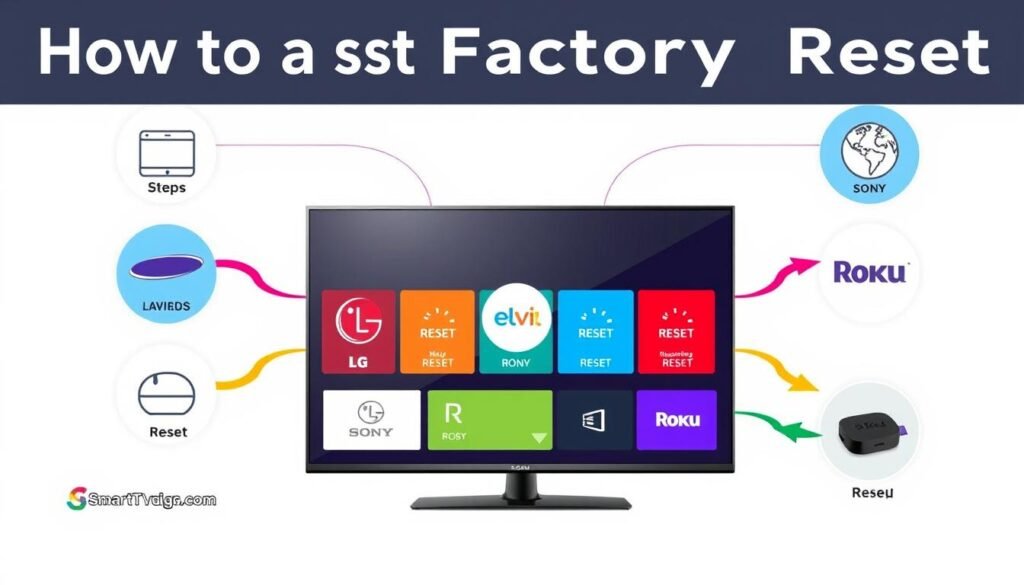
Thinking about these considerations for resetting TV can help you decide the best course of action. With the right preparation, resetting your TV can make it work like new again.
Factory Resetting Samsung Smart TVs
Resetting a Samsung Smart TV might seem hard, but it’s easy with the right Samsung smart TV reset steps. Different models have different reset methods. Knowing how to reset helps fix issues like frozen screens or apps that won’t work.
Step-by-Step Process for Samsung
To reset your Samsung Smart TV, follow these steps:
- Press the Home button on your remote.
- Navigate to the Settings menu.
- Scroll down and select Support.
- Choose Self Diagnosis.
- Select Reset and enter the default PIN, which is 0000.
- Follow the on-screen prompts to complete the reset process.
This method makes resetting your TV easy. Remember, don’t unplug the TV during the reset to avoid problems.
Using Self Diagnosis Tools on Samsung TVs
Samsung Smart TVs have built-in tools like Samsung self diagnosis. These tools help fix small issues without a full reset. If your TV has problems, like apps freezing, these tools can help troubleshoot.
By choosing Self Diagnosis, you can run diagnostic tests and make changes. If issues still exist, a full reset might be needed to restore your TV to its original state, deleting all data.
If you’ve forgotten your PIN or have complex issues, Samsung customer service can help. Using the right steps and tools makes your Samsung Smart TV work better.
| Issue | Recommended Action |
|---|---|
| Frozen Screen | Perform a soft reset by holding the Power button. |
| Unresponsive Apps | Run the self diagnosis tool before a factory reset. |
| PIN Forgotten | Contact Samsung Customer Support for assistance. |
| Reset Needed | Follow the steps to initiate a factory reset. |
Factory Resetting LG Smart TVs
Resetting LG TVs can fix many problems, like apps not working or streaming issues. It brings your TV back to its original state. Knowing how to use the settings menu is key for a smooth reset.
Navigating the Settings Menu on LG TVs
To reset your TV through the settings menu, follow these steps:
- Press the Settings button on your remote to open the menu.
- Choose General from the options.
- Scroll down and pick Reset to Initial Settings.
- Enter the default PIN, usually 0000 or 1234, unless changed.
- Confirm the reset by following the on-screen prompts.
If you don’t have a remote, try this. Press and hold the Power button on the TV for about 10 seconds. This can reset your TV without a remote, fixing issues quickly.
Recovering from Common Issues on LG
After resetting your LG TV, you might still face some problems. Here’s how to solve common issues:
- For app issues, try reinstalling or updating the apps.
- If your TV won’t respond, unplug it for a minute then plug it back in. This can restart it.
- For streaming or internet problems, check your network settings and make sure your TV is connected to Wi-Fi.
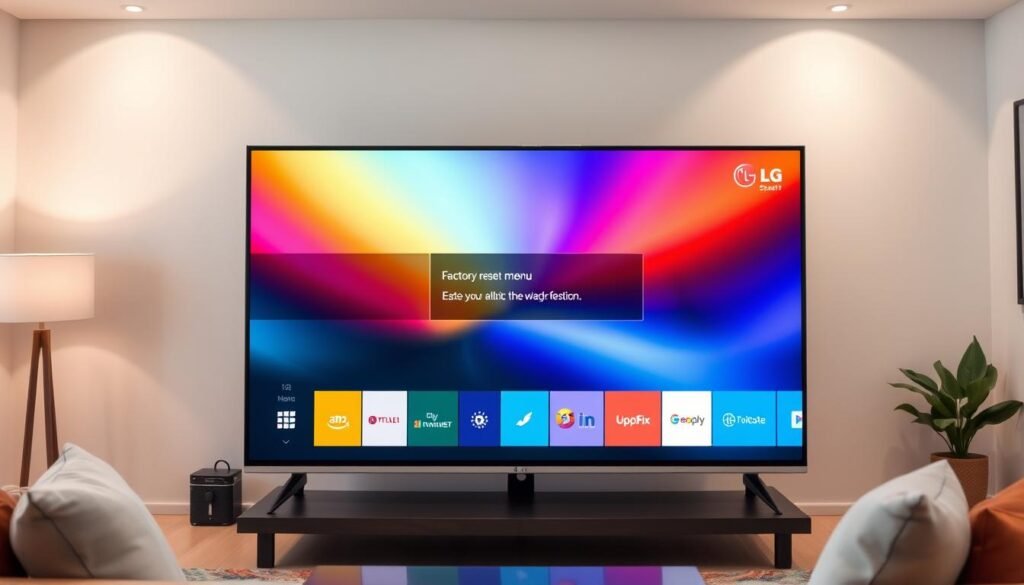
Understanding these steps helps me deal with reset problems on my LG TV. It makes resetting LG TVs easier and improves my viewing experience.
| Method | Steps | Notes |
|---|---|---|
| Remote Control Reset |
|
Default PIN: 0000 or 1234 |
| Power Button Reset | Hold Power Button for 10 seconds | No remote needed |
| Unplugging | Unplug for 1 minute, then re-plug | Helps cycle power |
Factory Resetting Sony Smart TVs
Managing your Sony Smart TV means knowing how to reset it. You might need to reset it if you’re having trouble or want to start over. I’ll show you how to do a factory reset on Sony TVs. Each model has its own way, so it’s key to know how to reset yours.
Different Methods to Reset Sony TVs
There are many ways to reset your Sony Smart TV. I’ll go over them so you can pick the right one for you:
- Soft Reset: Press and hold the POWER button on the remote to restart.
- Power Cycle: Unplug the TV power cord for 30 seconds to fix issues.
- Factory Data Reset: This resets your TV to its original state but needs setup.
- Forced Factory Data Reset: Good for TVs that won’t turn on, uses TV buttons for reset.
Understanding the Different Settings for Sony Models
Each Sony model has its own reset process. Here’s a quick guide for common reset methods based on your TV’s buttons:
| TV Model Buttons | Reset Method | Notes |
|---|---|---|
| One Button | Manual Reset | Press and hold the Power button until a white LED light appears. |
| Three Buttons | Manual Reset | Press and hold the Power and Volume Down (-) buttons until a green LED light appears. |
| More Than Three Buttons | Multi-Step Process | Follow specific model instructions for the reset. |
Remember, a factory reset will erase all your custom settings and apps. It might take a few minutes to complete. For the best results, check your model’s manual or support resources for detailed instructions.
Factory Resetting Vizio Smart TVs
Resetting a Vizio smart TV can solve many problems and make it work better. I suggest a Vizio smart TV reset for issues like freezing screens and app crashes. I’ll show you how to reset your TV with the remote and how to get back to default settings.
Using the Remote to Reset Vizio TVs
Restarting your Vizio TV can fix many common problems. Most people find that a simple restart solves about eighty percent of issues. Here’s how to reset your Vizio TV with the remote:
- Press and hold the Power button on the remote for several seconds until the TV restarts.
- Alternatively, navigate to Settings using the remote, find Reset, and choose Soft Power Cycle.
- If the remote is unavailable, locate the physical Power button on the TV and hold it down to restart.
- A force restart can also be performed by unplugging the TV, waiting one minute, and then plugging it back in. Hold the Power button for a few seconds afterward.
These steps help clear temporary data, ensuring smooth functionality.
Restoring Default Picture and Sound Settings
Restoring Vizio audio settings and picture configurations to their factory defaults can greatly improve your viewing experience. If you have problems with video or audio quality, try these steps for a complete reset:
- Access the Settings menu from the remote.
- Select System, then go to Reset & Admin.
- Choose Reset TV to Factory Defaults to start the factory reset Vizio TVs.
This action removes all customized settings, including audio adjustments, network information, and app configurations. After a factory reset, you get a clean start, free from bugs or temporary issues.
Factory Resetting Hisense Smart TVs
Resetting a Hisense Smart TV can solve many problems and bring it back to its original state. It’s important to know the right reset method for your model, as they differ. This guide will show you how to reset through the menu and use Hisense’s self-diagnosis tools for troubleshooting.
Resetting Through General Menu Options
To reset your Hisense TV, start by going to the general menu. Here’s how to do it:
- Press the “Settings” button on the remote.
- Go to “System” and pick “Reset.” You might need a four-digit code if you’ve set one up.
- Press “OK” to confirm the reset. You’ll see a warning that all data, accounts, and apps will be deleted.
- Hold the “Exit” button for 20 seconds and then press “OK” to start the reset. Or, press the physical “Reset” button on the TV for about 15 seconds.
Using a Hisense smart TV reset guide specific to your model will make the process easier.
Utilizing Self Diagnosis Features on Hisense TVs
Before doing a factory reset, try the Hisense self-diagnosis tools to find and fix small problems. These tools can help without losing all your settings. Here’s how to use them:
- Go to “Settings” and find “Support” or “Customer Support.”
- Choose “Self Diagnosis” to start the tests. The TV will check for issues.
- If the tools find a small problem, fixing it might avoid a full reset.
Using these tools helps keep your preferences and apps while fixing small problems. Knowing how to reset and use self-diagnosis tools will help keep your Hisense Smart TV running well for a long time.
Common Issues and Troubleshooting After Factory Reset
After a factory reset on your smart TV, you might face some common problems. These can make watching TV less enjoyable. I’ll talk about the usual issues and how to fix them. This way, you can get your TV working like new again.
Identifying Problems Post-Reset
After resetting, you might see a few issues. These can affect how well your TV works:
- TV not showing an image: Make sure the TV input is right. Check the HDMI source connected to your TV.
- HDR not working right: Your TV might need some settings changes for HDR. Make sure it supports the HDR format of your content.
- High input lag when gaming: Turning on Game Mode can help reduce lag during games.
- Auto Low Latency Mode not working: You might need to enable this feature manually for less lag while gaming.
- Variable refresh rate not working: Check if your console and TV are compatible for smooth gaming.
- Chroma 4:4:4 not showing up right: If you’re using your TV as a PC monitor, check your settings.
- Picture skips or jumps: Turning off motion interpolation can make images clearer.
- Bright spots in dark scenes: Adjusting dynamic range settings might help.
- Blooming around bright objects in dark scenes: Tweaking local dimming settings can reduce this issue.
- TV not showing maximum resolution: Make sure both your source and TV are set to the highest quality.
Re-establishing Network Connections and Accounts
Getting your TV’s network settings back is key after a reset. Here’s how to reconnect:
- Go to the network settings menu on your TV.
- Pick your Wi-Fi network and enter the password. Make sure you’re connecting to the right one.
- Reconnect devices like Blu-ray players or game consoles. They might need extra setup for HDR.
- Log back into streaming services with your account details. This way, you can watch your favorite shows again.
- Look at Picture Size, Aspect Ratio, or Screen Size settings. Adjust them for the best video display.
Fixing these common issues after a reset makes your smart TV work better. By troubleshooting and setting up your network again, you can enjoy watching TV without any problems.
Conclusion
Understanding how to factory reset your smart TV is key. Different brands like Samsung, LG, Sony, Vizio, and Hisense have their own steps. Knowing these helps me fix problems with my TV.
Preparing for a reset is important. Backing up data like channel lists and Wi-Fi settings helps a lot. Also, knowing when to use a soft reset or a hard factory reset is crucial.
Having the right info about factory resets helps me control my TV better. This article has given me the confidence to handle any reset issues that come up.