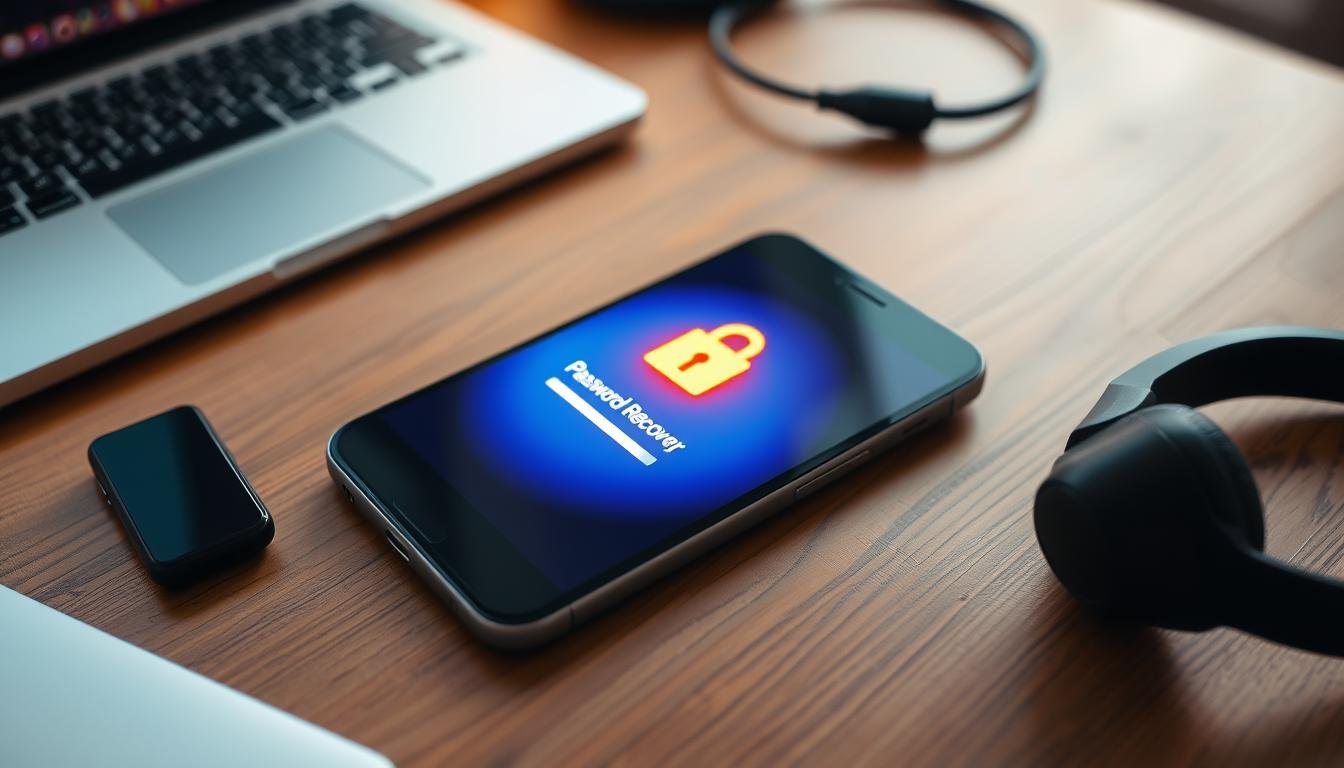
Forgetting passwords is a common problem in our digital lives. It can block access to vital accounts and data. This guide will show you how to get back into your smartphone, using biometric login, special tools, and more. You’ll learn how to avoid losing passwords in the future too.
Key Takeaways
- Discover ways to recover lost or forgotten passwords on your smartphone, including biometric authentication, specialized tools, and remote device management.
- Learn how to prevent future password loss through secure data backup and the use of password managers.
- Understand the importance of smartphone security and the role of password recovery in maintaining digital access.
- Explore a range of methods to regain control of your smartphone and access your important accounts and data.
- Gain confidence in handling password-related issues on your Android device, ensuring seamless digital experiences.
Introduction: The Importance of Password Recovery
In today’s digital world, passwords protect our online lives. They unlock our phones and important accounts. But, forgetting them can cause stress and frustration.
Stefan Thomas lost access to 7,002 Bitcoins worth over $160 million because he forgot his password. This shows how serious password loss can be.
Having a good way to recover lost passwords is crucial. Without it, we could lose access to our digital valuables. This guide will show you how to regain control of your phone and avoid losing passwords in the future.
The Stress of Forgetting Passwords in Our Digital World
We have many digital accounts and devices today. Remembering all their passwords is hard. Forgetting a password can block us from our devices and accounts.
It can also cause big financial and personal problems. Stefan Thomas lost access to a hard drive with 7,002 Bitcoins worth over $160 million because he forgot his password. His story highlights the need for good password recovery solutions.
The Story of Stefan Thomas and His Forgotten Bitcoin Password
Stefan Thomas, a German programmer, forgot the password to a hard drive with 7,002 Bitcoins. These Bitcoins were worth over $160 million at the time. Despite trying many times, Thomas couldn’t guess the password.
This left him unable to access his digital fortune. His story shows how quickly valuable digital assets can be lost because of a forgotten password.
“I would just lay in bed and think about it. Then I’d go to the computer with some new technique, and it wouldn’t work, and I’d be desperate again.”
– Stefan Thomas, on the stress of forgetting his Bitcoin password
Way 1: Use Biometric Authentication
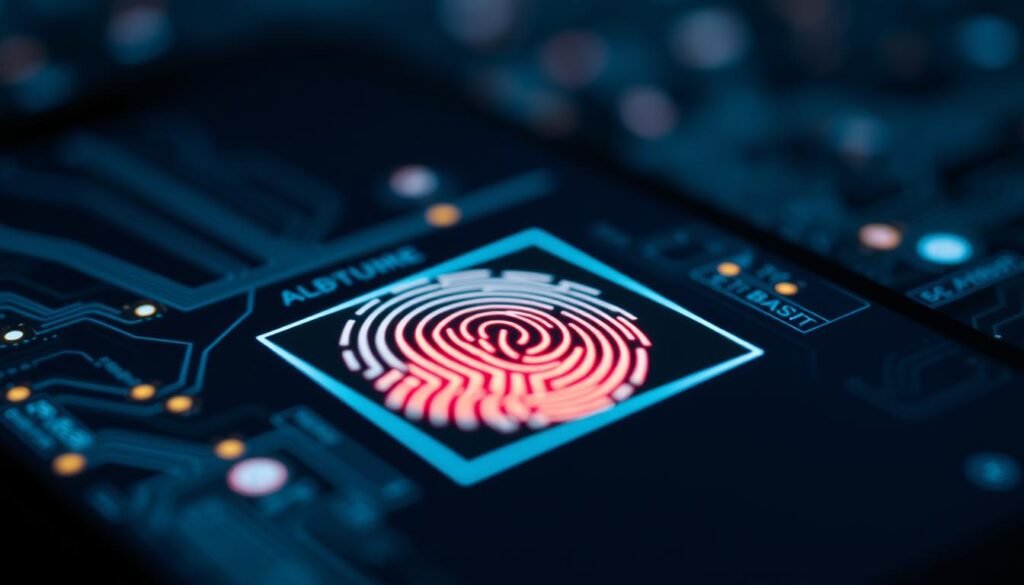
One of the best ways to get past a forgotten password on your phone is to use biometric features. These include face unlock and fingerprint unlock. They use your face or fingerprint to verify who you are, letting you into your phone without a password.
Face Unlock and Fingerprint Unlock Features
Biometric features like face and fingerprint unlock are now common on phones. They use special sensors to recognize your face or fingerprint. This makes unlocking your phone easy and safe, without needing a password.
Tips for Using Biometric Authentication Correctly
To make these features work well, you need to register your face and fingerprint right. This means taking a clear photo of your face or pressing your finger on the scanner a few times. Also, use these features in good light and keep your phone’s software updated.
Biometric authentication is a great way to get back into your phone without a password. It uses your unique features to unlock your device quickly and easily.
“Biometric authentication is increasingly deemed more secure in comparison to traditional password methods.”
Way 2: Use Dr.Fone – Screen Unlock (Android)
As an Android user, forgetting your password can be really frustrating. Luckily, Dr.Fone – Screen Unlock (Android) offers a reliable way to bypass the lock screen. You can get back into your device without remembering the password or losing data.
This tool from Wondershare works with over 2000 phone and tablet models from 22 brands. It can handle forgotten patterns, PINs, passwords, or even fingerprints. Dr.Fone – Screen Unlock can unlock your Android phone in just a few minutes.
Dr.Fone – Screen Unlock is great because it unlocks Samsung and LG phones without losing data. This is different from many other solutions. You can get back into your device without losing all your important data and files.
| Feature | Benefit |
|---|---|
| Supports 22 Android brands and over 2000 models | Comprehensive coverage for a wide range of Android devices |
| Bypasses patterns, PINs, passwords, and fingerprints | Unlocks your device regardless of the security method used |
| Unlocks Samsung and LG phones without data loss | Preserves your important data and files during the unlocking process |
To use Dr.Fone – Screen Unlock, just download and install it on your computer. Then, connect your Android device and follow the easy steps. This tool is a must-have for anyone who’s forgotten their Android password.
How to Recover Lost or Forgotten Passwords on Your Smartphone: A Complete Guide
Smartphones are key to our daily lives. But, forgetting passwords can be frustrating. Luckily, there are ways to get back into your device and accounts. This guide will show you how to do it step by step.
Using biometric features like face or fingerprint unlock is a great way to start. These features are common on Android and iPhones. They let you skip the password with just a look or touch. Make sure to set them up right and keep them updated.
| Smartphone Lock Screen Security Options | Percentage of Users |
|---|---|
| Pattern Unlock | 35% |
| PIN Unlock | 40% |
| Password Unlock | 15% |
| Fingerprint Unlock | 50% |
| Face Unlock | 30% |
If biometric features aren’t an option, don’t worry. For Android users, Dr.Fone – Screen Unlock is a helpful tool. It lets you unlock your screen without losing any data. This software can help you get back into your device.
Recovering passwords can be different for each device and system. But, by trying out the methods in this guide, you can keep your smartphone safe. And avoid future password problems.
“Forget your password? Don’t worry, we’ve got your back. This guide will show you how to regain access to your smartphone in no time.”
Way 3: Google’s Find My Device Feature
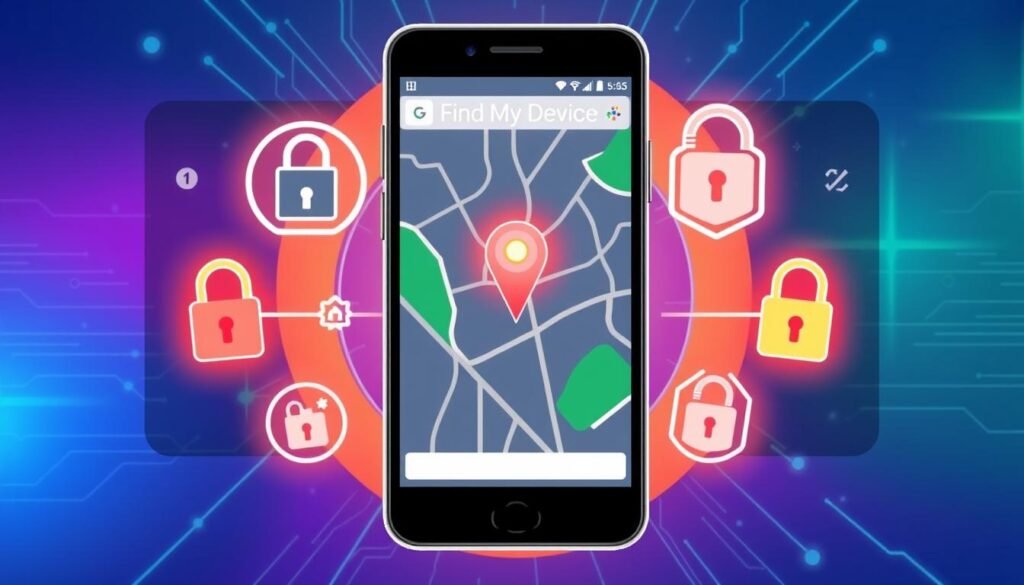
For Android users, Google’s Find My Device feature is a handy way to unlock a phone with a forgotten password. You can do this by using your Google account and the password linked to the device. This method lets you unlock your Android phone easily, without needing to deal with complicated steps. Just make sure you’ve turned on Find My Device on your device beforehand. This makes it a solid choice for Android password recovery.
Requirements and Steps to Use Find My Device
To unlock your device with Find My Device, you need to meet a few conditions:
- Your device must be connected to a Google account.
- Location services must be turned on your Android device.
- The Find My Device feature must be enabled on your device.
After meeting these requirements, here’s how to unlock your Android device with Google Find My Device:
- Go to the Google Find My Device website or use the app.
- Sign in with your Google account linked to the locked device.
- Find your device on the map and choose “Lock”.
- Enter a new temporary password to unlock your device.
- Your Android smartphone will now be unlocked, and you can access it again.
Using Google Find My Device lets you quickly and safely get back into your Android device. Even if you’ve forgotten your password, this feature is a lifesaver for Android password recovery and managing your device remotely.
Way 4: Reset Android and Use “Forgot Pattern”
If you’re using an Android, there’s a feature to help if you forgot your pattern lock. The “Forgot Pattern” option is for devices running version 4.0 or lower. It lets you reset your device and remove the forgotten password.
To use it, just enter an incorrect pattern or password five times. You’ll then see the “Forgot Pattern” feature. It will guide you to reset your Android phone. This way, you can bypass the forgotten pattern and control your device again. But, remember, you might lose any data not synced to your phone.
For Android devices with newer versions, this feature might not work. You might need to try other options, like Google’s Find My Device or a factory reset.
Quick action is key to recover a forgotten Android password or pattern. Resetting your device helps avoid data loss and gets you back into your phone or tablet.
“The ‘Forgot Pattern’ feature on Android devices is noted for being a quick and easy method to regain access if you forgot the pattern lock, but it has limitations such as only working on older Android versions and requiring an active internet connection.”
Way 5: Perform a Factory Reset
If you can’t remember your Android password, a factory reset might be your last choice. This action will delete all data not synced to the cloud. It’s key to back up your data regularly to avoid losing it.
To factory reset your Android, follow these steps:
- Make sure your phone is charged to 70% and connected to Wi-Fi or mobile network.
- Go to your device’s Settings menu.
- Find the General Management or System section, then tap Reset.
- Select Factory data reset.
- Read the warning that all data will be erased. Then, confirm the reset.
- Your phone will reset to its original settings.
Some factory reset steps work only on Android 9.0 and later. You’ll also need your Google Account’s username and password to restore data after the reset.
Before doing a factory reset, back up your data to your Google Account. This way, you can get your important info back after the reset.
If you’re not sure about the steps for your Android, check your manufacturer’s support site. You can also find help with Google Accounts and phone lock issues.
Way 6: Search Your Digital Accounts and Files
Looking for a lost or forgotten password? Start by checking your digital accounts and files. Look in your web browsers like Microsoft Edge, Firefox, Chrome, and Safari. They often save your login details securely.
Then, search your email accounts for any messages with the password you need. Also, check cloud storage services like Google Drive, Dropbox, and Evernote. They might have the password you’re looking for.
Searching Files on Windows and Mac
Use your computer’s search function to find the password. Search through documents and spreadsheets on your Windows or Mac. Use advanced search tools to find what you need faster.
| Platform | Search Capabilities |
|---|---|
| Windows |
|
| Mac |
|
By checking your web browsers, email, cloud storage, and local files, you boost your chances of finding that password. This way, you can get back into your digital accounts.
Way 7: Check Physical Locations
Don’t forget to look for your forgotten password in physical places. Check your home and office thoroughly. Look in your desk, filing cabinets, and even your wallet. These are common spots for writing down passwords.
Start by searching your home, like your desk and nightstand. If you work outside the home, check your office too. Look at your computer, files, and any notes you have. Being thorough is key to finding your lost password.
Physical notes can often help you remember passwords. So, search every corner of your home and office. With some effort, you might find the clue you need to access your accounts again.
Conclusion: Preventing Future Password Loss
We’ve looked at ways to recover lost or forgotten passwords on our phones. It’s key to prevent these problems before they start. Using a good password manager like LastPass keeps our login details safe and easy to find, avoiding the hassle of forgotten passwords.
Following best practices for password management helps keep our digital lives safe. This means making strong, unique passwords, using two-factor authentication, and updating our contact info and security questions often.
By being proactive with our passwords, we can avoid losing them in the future. Staying alert and using the right tools helps us stay safe online. We can confidently use the internet, knowing our accounts and personal info are secure.