In today’s world, our smartphones are more than just phones. They can manage paper documents with ease. Thanks to advanced cameras and OCR technology, we can turn important papers into digital versions. This is all without needing a traditional scanner.
Mobile scanning apps make it simple to capture, organize, and share documents anywhere. This helps make our work more efficient and paperless.
Key Takeaways
- Smartphone cameras can now capture high-quality scans of paper documents
- There are hundreds of mobile scanning apps available for iOS and Android devices
- Top-rated scanning apps include Adobe Scan, Microsoft Office Lens, and Genius Scan
- Mobile scanning apps offer features like automatic cropping, text recognition, and PDF creation
- Proper lighting and positioning can improve the quality of mobile document scans
Why You Should Scan Documents with Your Smartphone
In today’s digital world, mobile scanning is more important than ever. The portability of smartphone scanners lets you turn important papers into digital files anywhere. This cost-effective solution helps you manage your documents easily, without needing a separate scanner. It also brings the benefits of paperless document management.
Convenience and Portability
With your smartphone, you can scan documents anytime, anywhere. Whether you’re in a meeting, out running errands, or at home. This convenience of mobile scanning makes organizing your papers much easier.
Cost-Effective Solution
Mobile scanning apps are often free or very cheap. This is much less expensive than buying a desktop scanner. So, you can start using paperless document management without spending a lot of money.
| Feature | Benefit |
|---|---|
| Portability of Smartphone Scanners | Digitize documents on-the-go, without the hassle of a separate device |
| Cost-Effective Scanning Solution | Enjoy the convenience of mobile scanning without breaking the bank |
| Benefits of Paperless Document Management | Streamline your workflow and reduce clutter with digital document organization |
“The convenience of mobile scanning has revolutionized the way I manage my documents. I can now digitize important papers with just a few taps on my smartphone, no matter where I am.”
Top Mobile Scanning Apps
There are many mobile scanning apps to choose from for digitizing paper documents. Adobe Scan, Microsoft Office Lens, and Genius Scan are among the best. Each app has unique features to meet different user needs.
Adobe Scan
Adobe Scan is known for its advanced image correction tools. It offers high-quality scans with features like perspective correction and shadow removal. You can try it for free for 7 days. A paid subscription of $9.99 per month adds more features, like OCR on up to 100 pages.
Adobe Scan has a 4.9 rating on iOS and 4.7 on Android. It’s a favorite among users.
Microsoft Office Lens
Microsoft Office Lens is great for exporting scanned documents to Microsoft Office formats. It’s free and offers features like special modes for different document types and annotation tools. It also captures text and tables well.
Microsoft Office Lens has ratings of 4.8 on both iOS and Android. It’s known for being reliable and easy to use.
Genius Scan
Genius Scan is loved for its simple scanning experience and easy-to-use interface. The basic version is free, but a paid subscription of $0.99 per month unlocks more features like OCR and password protection. It has ratings of 4.9 on both iOS and Android.
Genius Scan is a top choice for those who want a straightforward scanning app.
These three apps offer different features and capabilities. They let users pick the best app for their needs. Whether you need advanced image correction, integration with Microsoft Office, or a simple scanning experience, there’s an app for you.
How to Scan Documents with Your Smartphone: Best Apps and Tips
Scanning documents with your smartphone is easy and convenient. First, pick a good mobile scanning app. Then, place your document right and use the app’s features to get the best scan. Here’s a simple guide to help you scan documents with your smartphone.
Start by choosing a trusted app like Adobe Scan, Microsoft Office Lens, or Genius Scan. These apps have features to make scanning better. After installing, find a flat, bright spot for your document. Hold your phone straight over it, making sure it’s centered and the edges are clear.
- Open the app and let it find your document’s edges. Most apps will snap the image right away, or you can start it manually.
- After scanning, you might see options to adjust the crop, rotate, or filter the image to improve it.
- Save the scanned document as a PDF or image. Then, share it via email, cloud storage, or other ways.
By following these steps, you can scan documents with your smartphone easily. The most important thing is to pick a good app and place your document right for the best scan.
| App | Features |
|---|---|
| Adobe Scan | Automatic edge detection, OCR, PDF conversion, cloud integration |
| Microsoft Office Lens | Whiteboard/document/photo scanning, OCR, cloud integration |
| Genius Scan | Multi-page scanning, PDF creation, cloud storage, annotation tools |
With these top mobile scanning apps and a few tips, you can scan documents with your smartphone. This makes managing your digital documents easier and more efficient.
“Scanning documents with your smartphone is a game-changer, offering a convenient and cost-effective solution for managing your paperwork.”
Choosing the Right Scanning App for Your Needs
When picking a mobile scanning app, think about what you need. The app’s optical character recognition (OCR) is key. It shows how well the app turns scanned text into digital formats you can edit.
Consider OCR Capabilities
Apps like Adobe Scan and CamScanner are great for working with scanned document content. They turn handwritten or printed text into formats you can edit. This is super helpful for professionals who need to work with their scans.
Evaluate Export Options
Also, check how the app lets you save your scans. Look for options like PDF, JPG, or Microsoft Office files. This makes it easy to use your scans in your work and document systems.
When picking a mobile scanning app, think about the factors to consider when choosing a mobile scanning app. Also, the importance of OCR in scanning apps and the export options for scanned documents. By looking at these, you can find the best app for your needs and make your document management easier.
“The right mobile scanning app can make a significant impact on your productivity and document management workflows.”
Tips for Improving Scan Quality
Lighting and Positioning
Getting high-quality mobile document scans means focusing on lighting and phone position. Good lighting is key to avoid shadows and blurry scans. Place your iPhone straight above the document, keeping it level to prevent distortion.
Stay away from glare from windows or lights above. This can cause reflections on shiny papers. By adjusting the light and phone position, you get sharper scans for digital storage or editing.
- Use direct overhead lighting to minimize shadows in your scans
- Position your iPhone parallel to the document for the best edge detection
- Avoid glare from windows or overhead lights that can create reflections
iPhones have a built-in scanner for easy document management. The camera ensures clear scans. You can send these scans to apps like Notes, Files, and Mail. This reduces paper use and makes sharing easy. Follow these tips to improve your scan quality and make your digital life easier.
Discover more tips for managingapp permissions and protecting your privacy on your.
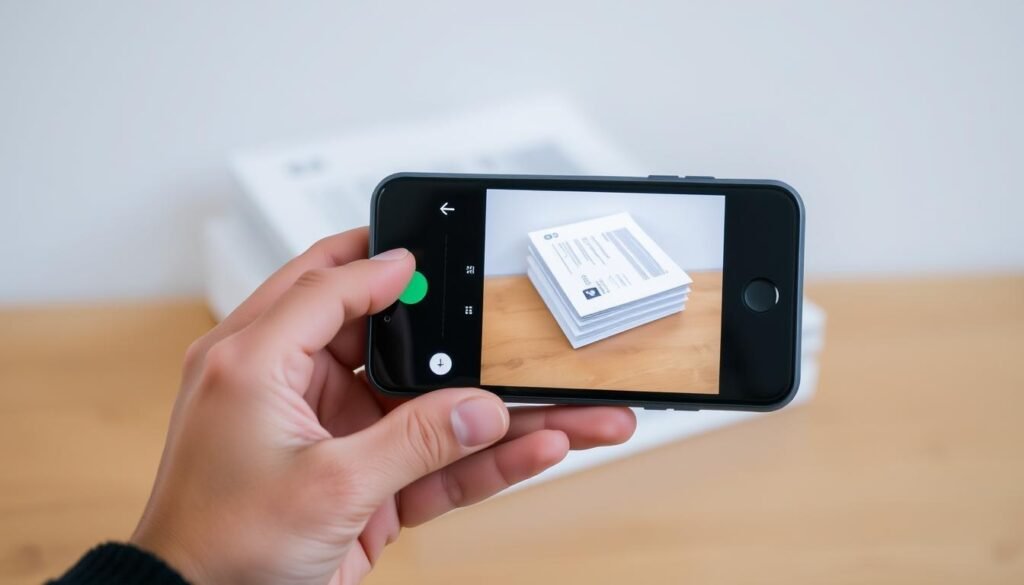
“Proper lighting and positioning are key to capturing high-quality document scans on your smartphone. With a few simple adjustments, you can achieve clear, accurate results that will streamline your digital workflows.”
Organizing and Sharing Scanned Documents
Organizing and sharing scanned documents from your smartphone is now easy. Most mobile scanning apps have features that make these tasks simple. They help you manage your digital documents effectively.
Many scanning apps let you create folders or albums for your scans. This keeps your documents organized and easy to find. They also work well with cloud storage services like Google Drive, Dropbox, or iCloud. This means you can back up and sync your scans across all devices, keeping your documents safe and accessible.
Sharing a document is straightforward with these apps. You can send it via email, messaging, or create a shareable link with just a few taps. This makes sharing your scanned documents quick and easy from your smartphone.
The ability to organize scanned documents on smartphone and share scanned files from mobile devices with cloud storage integration for mobile scans is a big advantage. It helps you keep your digital files in order and share them easily with others.
“Organizing and sharing scanned documents from my smartphone has been a total game-changer for my productivity. I no longer have to worry about misplacing important papers or scrambling to send them over – it’s all right at my fingertips.”
Using your mobile scanning apps can improve your document management. Whether you’re scanning receipts, contracts, or meeting notes, being able to organize and share them is very useful. It’s a key benefit in today’s fast-paced digital world.
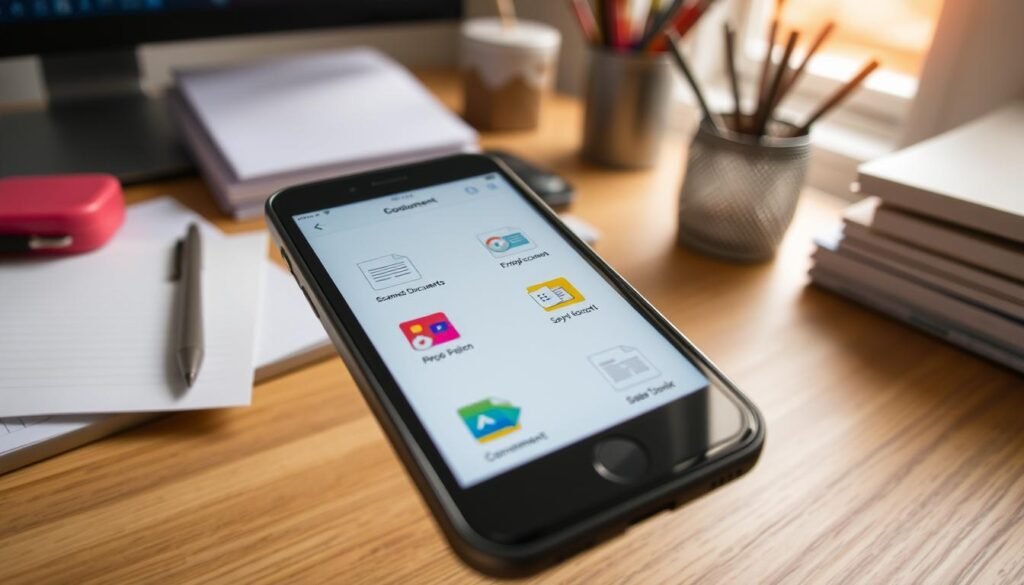
Mobile Scanning vs. Traditional Scanners
Mobile scanning apps have grown more powerful. Yet, there are times when a traditional desktop scanner is better. For tasks needing precise text recognition or handling lots of documents, a dedicated scanner is more efficient.
Also, for high-resolution photos or delicate materials, a flatbed scanner works better than a smartphone camera. But for everyday document scanning, like receipts or business cards, a mobile scanning app is a great, affordable choice.
When to Use a Traditional Scanner
The choice between mobile scanning and traditional scanners depends on your needs. Here are some situations where a dedicated scanner is better:
- High-volume scanning: For scanning lots of documents, a scanner with an automatic document feeder (ADF) is faster than using a mobile app.
- High-resolution scanning: For detailed work or high-quality images of slides and negatives, a flatbed scanner is better than a smartphone camera.
- Precise text recognition: For top-notch text accuracy, a dedicated scanner with advanced OCR is the best choice.
But for everyday scanning, like receipts or letters, a mobile scanning app is a good, affordable option.
“Phone-based scanners offer convenience, while flatbed scanners prioritize quality in document scanning.”
Choosing between mobile scanning and traditional scanners depends on your needs and preferences. Knowing the strengths and weaknesses of each helps you pick the right scanning method for your work.
Embracing the Paperless Office
As we move towards a more digitally-driven world, embracing a paperless office is key. Mobile scanning apps help us manage documents better and reduce paper use. This makes our work environment more efficient and eco-friendly.
The move to a paperless office has grown over the last decade. Smartphone scanning apps like Adobe Scan and Microsoft Office Lens are leading this change. They let us capture and organize documents easily with just a few taps.
Going paperless means no more cluttered filing cabinets. We can store our documents digitally, making them easy to find and share. This saves space and reduces the risk of losing important papers.
Mobile scanning also supports digital document management. Apps like Evernote act as digital filing cabinets. They help us organize and access our documents from anywhere, saving time and boosting productivity.
By embracing the paperless office, we help the environment too. We use less paper, which means less deforestation and a smaller carbon footprint. This makes a big difference for our planet.
In conclusion, the benefits of a paperless office are clear. Mobile scanning apps make our work more efficient, secure, and sustainable. By using these apps, we’re moving towards a better future for our work and the planet.
| Benefit | Impact |
|---|---|
| Reduced paper consumption | Decreased deforestation and lower carbon footprint |
| Efficient document organization and retrieval | Increased productivity and better decision-making |
| Secure digital document storage | Enhanced data protection and compliance |
| Seamless document sharing and collaboration | Improved teamwork and remote work capabilities |
“Going paperless isn’t just about being environmentally conscious – it’s about streamlining your workflows, saving time and money, and enhancing your overall productivity. Mobile scanning apps make the transition seamless and efficient.”
Conclusion
Smartphone scanning apps have changed how we deal with physical documents. They let me easily scan, organize, and share papers on the go. This is much easier than using a desktop scanner.
Apps like Adobe Scan, Microsoft Office Lens, and Genius Scan are top choices. They provide high-quality scans, accurate text recognition, and work well with cloud storage and productivity tools.
Using mobile scanning helps me manage documents better and reduces paper clutter. It’s a big step towards a paperless office. With features like auto-detecting edges and secure file sharing, Android phones make it easy to manage scanned documents.
In short, smartphone scanning apps are very useful for managing documents today. They save time, keep me organized, and help me go paperless. Plus, they keep my important files safe and private.