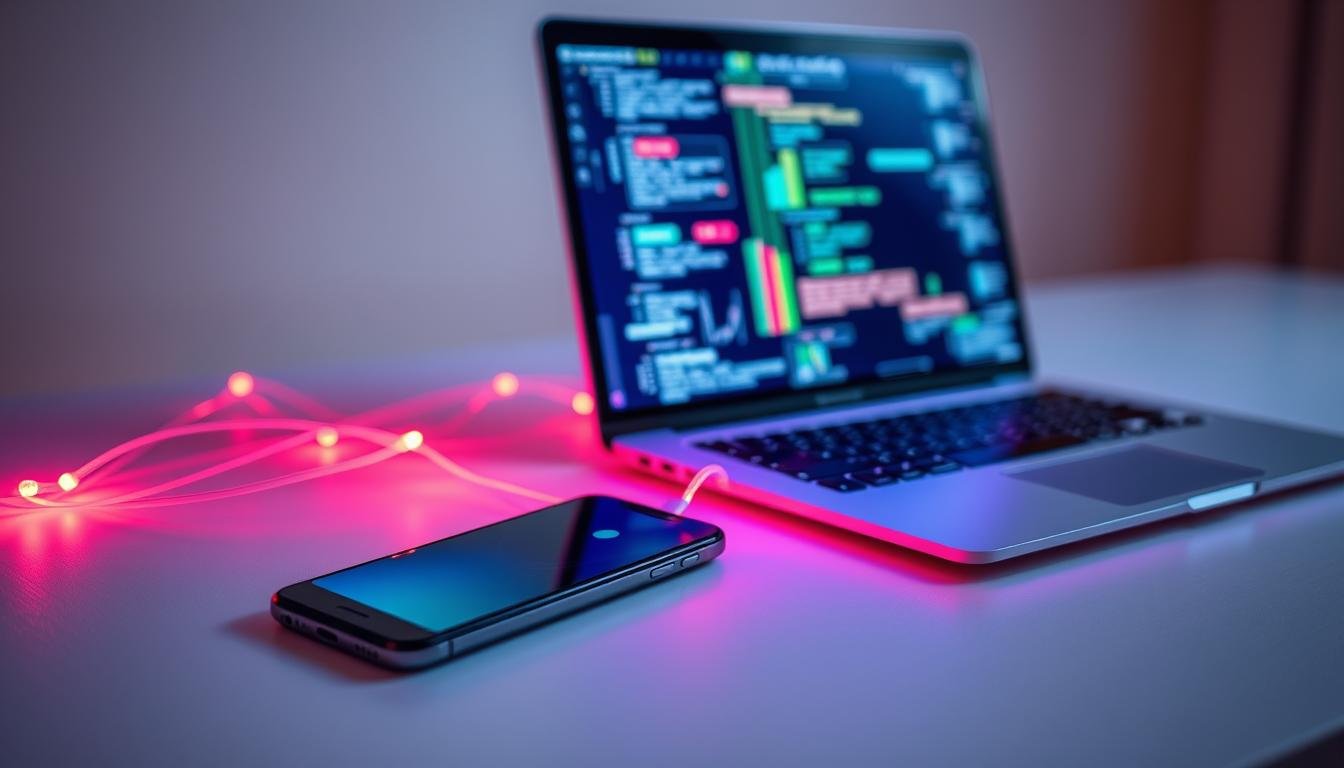
As someone who loves tech, I know how key it is to move files easily between my phone and computer. Whether it’s photos, videos, or documents, having a good way to share them is crucial. In this guide, I’ll show you how to do this for both Android and iOS users.
There are many ways to transfer files, from using a USB cable to wireless options like Bluetooth and Wi-Fi. I’ll also talk about cloud storage and apps that make it even easier. By the end, you’ll know all about the different ways to transfer files, helping you pick the best one for you.
Key Takeaways
- Discover the four primary methods for transferring files between your smartphone and computer.
- Learn about the benefits and drawbacks of each file transfer technique, including USB cable, SD card, wireless options, and cloud storage.
- Explore the compatibility of various file transfer methods across different smartphone and computer operating systems.
- Gain insights into the role of third-party apps in enhancing the file transfer experience.
- Discover how to leverage cloud storage services for seamless data management across devices.
Connect Your Phone and Computer Using a USB Cable
Connecting your Android device to a Windows PC with a USB cable is easy and reliable. It’s like using an external hard drive. You can easily move files between your phone and computer.
Just plug your Android phone into your Windows computer with a USB cable. Then, open File Explorer on your PC. You can see your phone’s storage and move files like documents, photos, and videos.
The speed of file transfer depends on the USB cable and the devices’ storage. USB cables are usually faster than Bluetooth. Also, transferring to a solid-state drive (SSD) on your PC is quicker than a traditional hard drive.
USB cable transfer is very reliable. You don’t have to worry about connection problems. It’s perfect for big files or when you need a secure transfer.
For a simple way to move files, use a USB cable. File Explorer makes it easy to manage your data between your Android to Windows devices.
Transfer Files Using an SD Card
For Android users, using an SD card to transfer files is easy. If your device has a microSD card slot, just remove the SD card. Then, insert it into a card reader and plug it into your computer. You can move files between your phone and computer this way.
Steps for Android Devices
- Make sure your Android device has a microSD card slot and that a card is inserted.
- Gently remove the SD card from your Android phone.
- Insert the SD card into a card reader connected to your computer.
- On your computer, you can now access the files and folders stored on the SD card.
- Drag and drop or copy and paste the files you want to transfer between your computer and the SD card.
- When you’re done, safely remove the SD card from the card reader and reinsert it into your Android device.
This method of transferring files with SD card is great for Android to computer file transfer. It’s perfect for moving big files or when your phone’s storage is full. It uses your Android’s removable storage feature.
“Using an SD card is a simple and effective way to move files between my Android phone and computer. It’s especially handy when I need to transfer large files or free up space on my phone’s internal storage.”
The speed of file transfer depends on your SD card and card reader. For the best results, use a fast, high-capacity SD card. Also, a USB 3.0 or higher card reader is recommended.
Wireless File Transfer Over Bluetooth
Bluetooth is a great way to send files wirelessly from your Android to a Windows PC. It’s easy to use and doesn’t need cables or the internet. You can share documents, photos, and more between devices.
Sending Files from Android to Windows PC
First, make sure Bluetooth is on for both your Android and Windows PC. Then, follow these easy steps:
- On your Windows PC, open Bluetooth settings and pick the file receiving option.
- On your Android phone, pick the files you want to send. Look for Bluetooth devices in the sharing menu.
- Choose your Windows computer from the list. The file transfer will start.
Bluetooth is good for Bluetooth file transfer, but it’s slower than some other methods. For example, Bluetooth 4.x can only transfer data at about 25 Mbps. This means big files take longer to send.
“Bluetooth is a convenient option for cross-device file sharing, but it may be slower compared to other wireless transfer methods.”
If you’re dealing with big files or need speed, look into other options. Wondershare MobileTrans is a fast and easy way to transfer files between devices.

Share Files Using Wi-Fi Without Internet
Transferring files between your Android and Windows PC is easy with Wi-Fi. You don’t need an internet connection. This method lets you share files directly between your Android to Windows PC without any hassle.
To start, turn on your Android’s hotspot. Then, connect your Windows PC to the same network. Use a third-party FTP app on your Android to share files with your computer over Wi-Fi.
Transferring from Android to Windows PC
Here’s how to move files from your Android to a Windows PC using Wi-Fi:
- Enable the hotspot or mobile hotspot feature on your Android smartphone.
- Connect your Windows PC to the Wi-Fi network created by your Android device.
- Download and install a reliable FTP app, such as FTP Server or ES File Explorer, on your Android smartphone.
- Open the FTP app and configure it to share the desired folders or files on your Android device.
- On your Windows PC, launch a file explorer and navigate to the FTP server address provided by the app.
- You can now browse the shared folders and transfer files between your Android device and Windows PC over the local Wi-Fi connection.
This method is great for wireless file transfer between devices. It’s fast and secure, perfect for when you need to share files quickly.
How to Transfer Files Between Your Smartphone and Computer: Simple Methods for Android and iOS
Managing your digital data across devices is key in today’s world. Whether you use Android or iOS, moving files between your phone and computer is easy. We’ll show you simple ways to transfer files, covering transferring files between smartphone and computer, cross-platform file management, and data synchronization.
About half of the methods use a USB cable for wired connections. The other half are wireless, like cloud storage or native file-sharing features. This way, you can pick the best method for you.
Android users will learn how to transfer files from Android to Windows PC. We’ll cover using Android File Transfer for Mac users. iOS users will discover how to use Apple AirDrop for easy file sharing between iPhone and Mac.
Whether you’re on Android or iOS, these methods will help you manage files across platforms. You’ll keep your important data in control. Let’s explore the easy ways to move files between your smartphone and computer.
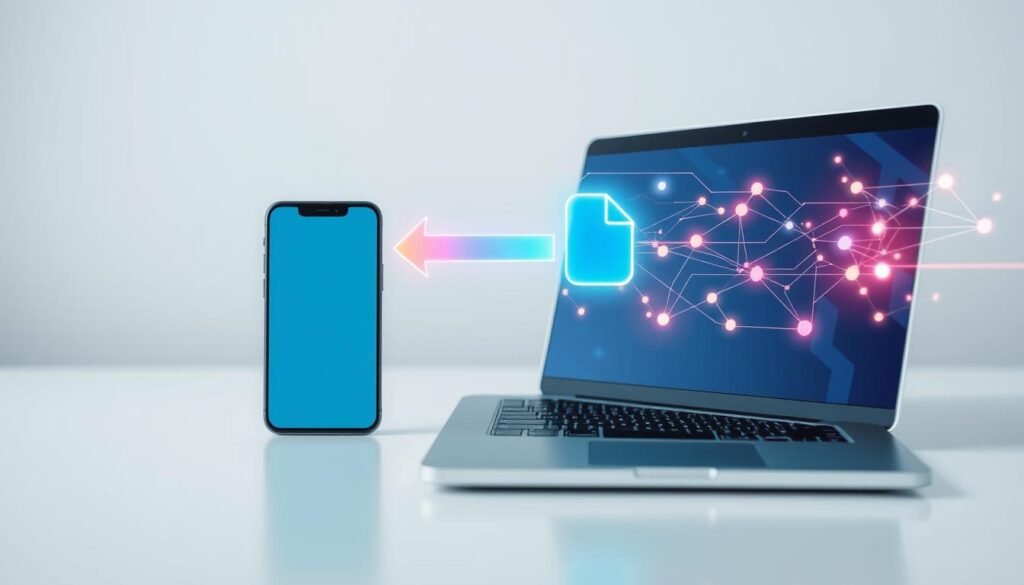
“Effortless data synchronization is the key to staying organized and productive in today’s digital landscape.”
Utilize Cloud Storage Services
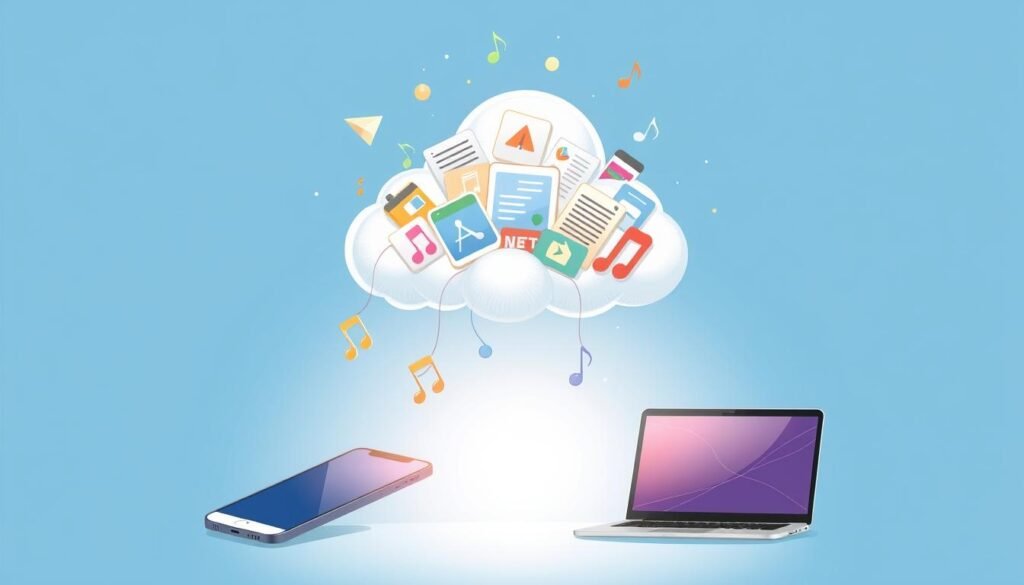
Cloud storage services like Google Drive, Dropbox, or Microsoft OneDrive make sharing files easy. They store your data online, so you can access it from any device with internet. This is great for cross-device file synchronization and online backup and sharing.
Cloud storage lets you sync files across devices. Work on a document on your laptop or take photos on your phone. The cloud keeps your files updated and accessible everywhere. This is perfect for cloud storage file transfer when you need to work with others or share with friends and family.
| Cloud Storage Provider | Free Storage Limit | Paid Plans |
|---|---|---|
| Google Drive | 15GB | Up to 2TB |
| Dropbox | 2GB | Up to 2TB |
| Microsoft OneDrive | 5GB | Up to 6TB |
Cloud storage also lets you back up your data and access it from anywhere. Whether you’re on the move with your phone or working at your computer, your files are safe in the cloud. They’re ready for you to download or share whenever you need.
“With cloud storage, I can easily transfer files between my phone and laptop, and I never have to worry about losing important documents or photos. It’s a game-changer for my productivity and peace of mind.”
Cloud storage services make managing your files easy and convenient. They ensure your data is accessible, synced, and safely backed up across all your devices. It’s a smart way to handle cloud storage file transfer and cross-device file synchronization.
Using Apple AirDrop for iPhone to Mac Transfer
Have you ever used AirDrop to share files between your iPhone and Mac? Introduced in 2012, AirDrop makes sharing easy. It lets you send files, photos, and documents between your devices, making it simple to share within the Apple world.
To start, your iPhone and Mac need to be running the right software. Your iPhone should have iOS 7 or newer, and your Mac should have macOS Yosemite or later. They also need to be close, within 30 feet, with Wi-Fi and Bluetooth on. Once set up, sharing files is automatic, as long as you’re logged into the same Apple ID on both.
AirDrop is great for sharing big files, like high-resolution photos and videos. It’s better than sending files via email, which usually has a 25MB limit. Plus, iCloud Photos can automatically move your photos to all your Apple devices, keeping your memories together.
But AirDrop isn’t the only way to share files. You can also use iCloud Drive or third-party services like Dropbox and Google Drive. The best method for you depends on what you need and like best.
Transferring files between iPhones and Macs is now super easy. Whether you’re sharing documents, working on a project, or just want to see your photos on a bigger screen, AirDrop and other Apple tools make it smooth. They help you work better and enjoy your Apple devices more.
Third-Party File Transfer Apps
There are many third-party apps for transferring files between your phone and computer. Apps like Pushbullet and Xender make it easy to share files wirelessly. They often work faster and have more features than built-in options.
Apps like Pushbullet and Xender
Pushbullet is a top file transfer app for Android and iOS. It lets you share files, links, and more between your device and computer. You can send documents, photos, and videos without a USB cable. It also lets you see and reply to texts and app notifications on your computer.
Xender is great for wireless file sharing. It works with many devices, including Android, iOS, and Windows. You can share all kinds of files quickly. It supports over 30 languages, making it handy for international users.
| App | Key Features | Ratings |
|---|---|---|
| Pushbullet |
|
4.5/5 (Google Play Store) |
| Xender |
|
4.7/5 (Google Play Store) |
These third-party file transfer apps make exchanging files easy and efficient. They have features that the default options don’t. Whether you’re sharing big files or staying connected, Pushbullet and Xender are great tools.
Backing Up and Restoring Data with MobileTrans
In today’s world, our smartphones hold a lot of personal data. We can’t lose it. To keep your files, contacts, messages, and more safe, use MobileTrans.
MobileTrans is a tool from Wondershare. It lets you backup and restore data between your phone and computer. It has been downloaded over 3.5 million times. It supports many data types, like photos, videos, messages, and WhatsApp chats.
| Feature | Benefit |
|---|---|
| Cross-Platform Compatibility | Supports data transfer between iOS, Android, Windows, and Mac devices |
| Comprehensive Backup and Restore | Backs up and restores up to 18 types of data, including contacts, reminders, and bookmarks |
| High-Speed Data Transfer | Transfers data at an average speed of 30 MB/s, 200 times faster than Bluetooth |
| Secure and Private | Ensures data privacy during the transfer process with a local hotspot connection |
MobileTrans makes managing your digital life easy. It keeps your important data safe and accessible. Whether you’re getting a new phone or just want to back up, this tool is perfect for data backup and restore.
Forget about the trouble of moving files manually. MobileTrans offers a smooth cross-device data management experience.
Conclusion
In this guide, we’ve looked at many ways to move files between your phone and computer. This includes Android and iOS devices. You’ve learned about wired USB, removable storage, and wireless options like Bluetooth and cloud services.
Now, you can easily move files and keep your data in sync. This makes sure your important stuff is always ready to go, no matter where you are. We’ve also shared tips on cloud storage, third-party apps, and more.
With these methods, you can share messages, music, photos, contacts, and more. This keeps your digital world in perfect sync. You’re now ready to make your file transfers smoother, boosting your productivity and staying connected online.