Keeping your Windows device drivers updated is key for top performance and safety. This guide will cover what device drivers are and how to update them. Device drivers are software that lets your computer talk to hardware parts. Updating them makes sure your hardware works right and gets new features and security updates.
Without the latest drivers, you might see hardware problems or slow performance.
Key Takeaways
- Device drivers are software that enable communication between your computer’s hardware and software components.
- Regularly updating your drivers can improve system performance, ensure hardware compatibility, and enhance security.
- There are multiple ways to update drivers, including using Windows Update, Device Manager, and manufacturer websites.
- Outdated or corrupt drivers can cause system crashes, hardware malfunctions, and performance issues.
- Proper driver management is crucial for maintaining a healthy, efficient computer system.
Introduction to Device Drivers
Device drivers are the heroes of our digital world. They make sure our computer hardware and software talk to each other smoothly. These programs are key for our devices to work well together, like printers and cameras.
What Are Device Drivers?
Device drivers are software that connect our operating system to computer hardware. They turn software commands into actions that hardware can do. Without them, our computers can’t use the devices we plug in.
The Importance of Updated Drivers
It’s important to keep your drivers current for your computer to work well. Old drivers can cause problems like slow performance and security risks. Updating drivers helps your computer use new features and fix bugs.
| Statistic | Importance |
|---|---|
| Updating drivers shouldn’t be done very often unless there are issues or specific needs. | Updating drivers too frequently can cause more problems than it solves, so it’s important to strike a balance. |
| Graphics drivers for gamers with dedicated cards from Nvidia or AMD get frequent updates. | Gamers with high-end graphics cards often need to update their drivers to take advantage of the latest performance improvements and bug fixes. |
| Windows Update is the simplest way to update drivers. | For most users, relying on Windows Update to handle driver updates is the easiest and most convenient option. |
By keeping your device drivers up-to-date, your computer will run smoothly and securely. All your hardware will work well with the software you use every day.
How to Update Drivers Using Windows Update
Keeping your computer’s drivers up-to-date is key for top performance and stability. Windows Update makes it easy to keep your drivers current. With a few clicks, Windows can download and install the latest updates, ensuring your system runs smoothly.
To update drivers with Windows Update, open the Windows Update settings and click “Check for updates.” Windows will scan for updates and install them. This easy process saves you from the hassle of manual updates, making it perfect for most users.
While Windows Update is easy and convenient, it might not always have the latest or most specific drivers. Sometimes, you need to visit the manufacturer’s website for the latest drivers. Yet, for most users, using Windows Update is a reliable way to keep your system in top shape.
“Windows Update is a great tool for keeping your drivers up-to-date, but it’s always a good idea to check the manufacturer’s website for the latest and most specific driver versions.”
In summary, using Windows Update for driver updates is simple and effective. It helps keep your system running at its best. By using this built-in feature, you can manage your driver management needs easily and keep your computer running smoothly.
Updating Drivers with Device Manager
Keeping your computer’s drivers up to date is key for smooth performance. Windows has a tool called Device Manager for this. To open it, press the Windows key, type “Device Manager,” and choose it from the search results.
Updating Individual Drivers
In Device Manager, updating drivers for your hardware is easy. First, find the device you want to update. Right-click on it and choose “Update driver.” Then, click “Search automatically for drivers” to get the latest version.
Using Device Manager can get you newer drivers than Windows Update. This is because manufacturers often update their drivers first. It takes a bit more work, but it’s worth it for better system performance. You can also troubleshoot drivers this way.
| Device | Manufacturer | Latest Driver Version | Update Status |
|---|---|---|---|
| NVIDIA GeForce RTX 3080 | NVIDIA | 516.94 | Up-to-date |
| Intel Core i9-12900K | Intel | 12.21.64.3280 | Update available |
| Logitech MX Master 3 | Logitech | 9.01.73 | Up-to-date |
The table shows how Device Manager helps with driver updates. Regularly updating drivers keeps your system running well. Whether you’re updating drivers with Device Manager, doing manual driver updates, or using automated device management, it’s all good.
Downloading Drivers from Manufacturers’ Websites
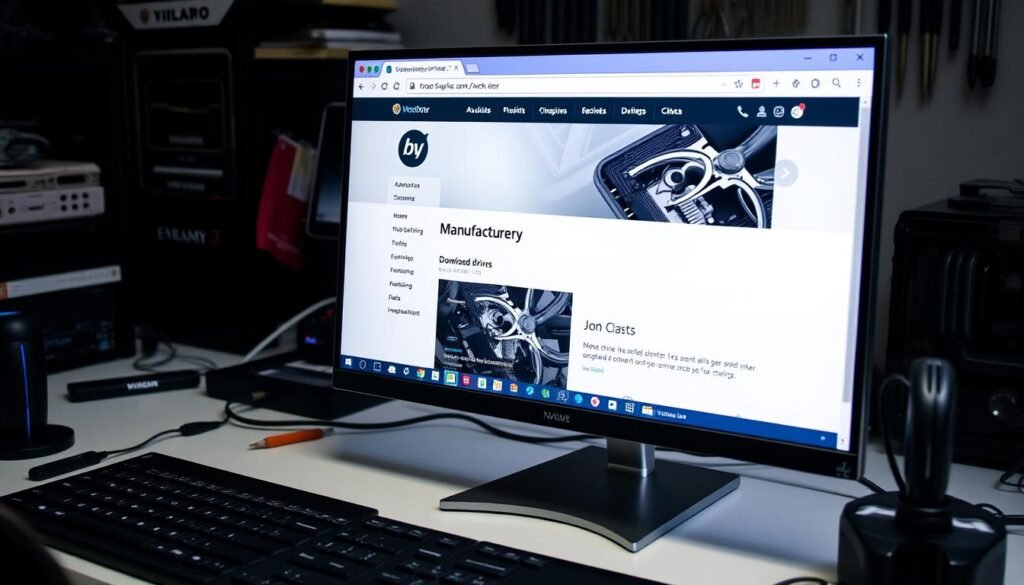
Downloading drivers from the manufacturer’s website is a smart move. It keeps your system running smoothly. You get the latest and most compatible drivers for your hardware, improving performance and avoiding problems.
Finding the Right Drivers
First, find the model number of your hardware. Then, go to the manufacturer’s support page. Look for the “Drivers” or “Downloads” section. Here, you can find and download the right driver for your device.
This method lets you get the newest driver versions. These might not be available through Windows Update or Device Manager.
Installation Process
- After downloading the driver file, run the installer. It will guide you through the installation steps.
- Follow the manufacturer’s instructions carefully. The process can differ based on the driver and your system.
- After installation, restart your computer. This ensures the changes take effect.
By downloading and installing drivers from the manufacturer’s website, you keep your system up-to-date. This prevents performance issues, crashes, and other problems caused by outdated or incompatible drivers.
“Keeping your drivers updated is crucial for maintaining a healthy and efficient computer system. Downloading drivers directly from the manufacturer’s website ensures you have the most compatible and secure versions installed.”
Utilizing Automatic Driver Update Tools
If you find manually updating drivers a chore, you’re in luck. Automatic driver update tools make it easy. They scan your system, find outdated drivers, and update them with just one click. Some tools even let you go back to older versions if needed.
Using driver update tools saves a lot of time. No more hours searching for the right drivers. These tools have huge databases of driver files, so you always get the latest and best ones.
Driver management software also reduces the chance of problems. It makes sure new drivers fit perfectly with your system. This can prevent crashes or malfunctions that can happen with manual updates.
For those who like things simple, one-click driver updates are a big plus. With just a few clicks, you can scan, review, and apply updates. This makes managing drivers easy, even for those who aren’t tech-savvy.
Some tools also offer driver backup and restore. This lets you keep a safe copy of your drivers. So, if a new update causes trouble, you can easily go back to the old one. This gives you peace of mind when updating drivers.
Using automatic driver update tools is a smart choice. It keeps your computer’s drivers up to date and your system running smoothly. By automating this task, you save time and ensure your devices work their best.
Common Signs Your Drivers Need Updating
Keeping your computer drivers up to date is key. It helps your system run smoothly, stay secure, and work well with other devices. But how do you know when it’s time to update? Here are some signs that your drivers might need a refresh:
System Crashes and Blue Screens
Seeing your computer crash or get a blue screen of death (BSOD) often means your drivers are outdated. These crashes can happen because of drivers that don’t work well with your system.
Hardware Malfunctions
Having trouble with your computer’s hardware? It might be because your drivers are old. Updating your drivers helps your hardware talk properly with your computer, avoiding problems.
Performance Issues
Is your computer slow or freezing a lot? It could be because your drivers are not current. Old drivers can make your computer run slow and freeze, especially with new software and hardware.
By watching for these signs, you can fix driver problems early. This keeps your computer running smoothly. Regular updates improve how your system works, your hardware’s performance, and keep your computer safe.
| Issue | Potential Cause | Impact |
|---|---|---|
| System Crashes and Blue Screens | Outdated or incompatible drivers | System instability and crashes |
| Hardware Malfunctions | Outdated drivers preventing effective communication with the operating system | Devices not functioning properly |
| Performance Issues | Outdated drivers not optimized for the latest hardware and software configurations | Sluggish system performance, lagging applications, and constant freezes |
By fixing these driver problems, you keep your computer running well. Regular updates are crucial for a stable and efficient system. They help your hardware work its best.
“How to Update Your Computer’s Drivers: A Simple Guide to Keep Your System Running Smoothly”
Keeping your computer’s drivers up-to-date is key for a smooth system. Outdated drivers can cause crashes, hardware problems, and slow performance. We’ll show you how to keep your drivers current.
Updating drivers regularly unlocks new features and improves security. It also fixes compatibility issues. Whether you use your computer a lot or just a little, updating drivers is important. This guide will help you keep your computer running smoothly.
First, understand how to update your drivers. Windows Update is a simple way to get the latest drivers. But for specific parts like graphics cards, get updates from the manufacturer’s site.
When looking for updates, use trusted sources and read reviews. Forums and tech blogs are great for the latest driver info and fixes.
Updating drivers is an ongoing task, but it’s worth it. Follow this guide to keep your computer running well.
“Updating your drivers is like giving your computer a fresh set of eyes – it can see the world in a whole new way.”
Troubleshooting Driver Update Issues
Updating your computer’s drivers is key for top performance. But, it’s not always easy. Let’s look at common fixes for driver update problems, like installation failures and compatibility issues.
Driver Installation Failures
One big problem is when driver installation fails. This can be due to a bad download, picking the wrong driver, or not having the right permissions. Here are some steps to help:
- Check the downloaded driver file’s integrity by verifying the checksum or MD5 hash.
- Run the driver installer as an administrator to get the needed access.
- Try getting the driver from the manufacturer’s site instead of third-party sources.
Compatibility Problems
Another issue is when new drivers clash with your system. This can cause crashes, blue screens, or slow performance. Here’s how to fix it:
- Use the Windows 10 or Windows 11 Device Manager to go back to a compatible driver version.
- Try an older or newer driver version from the manufacturer’s website if available.
- Use system restore points to go back to a time before the update.
By following these steps, you can often fix driver update problems. Remember, being patient and persistent helps a lot with driver issues.
Keeping your drivers up-to-date is crucial for performance. But, update problems are common. With the right fixes, you can solve installation failures and compatibility issues. This keeps your system running smoothly.
Graphics Driver Updates for Gamers
If you love gaming with an NVIDIA or AMD graphics card, updating your drivers is key. New driver updates come out often. They bring better performance and features for the latest games.
By keeping your graphics drivers up-to-date, you get the best gaming experience. Drivers are updated monthly. It’s best to update if your driver is more than three months old.
Windows Update gives you stable drivers. But for top gaming performance, get the latest drivers from the manufacturer’s site. This way, you get the newest GPU driver updates and fixes for your card.
“Over 25 million drivers can be scanned by driver updaters like Avast Driver Updater, making it easy to keep your system’s graphics driver up-to-date.”
Old or missing drivers can slow down your games. So, it’s important to keep your driver optimization up. Tools like Avast Driver Updater make it easy to keep your NVIDIA, AMD, and Intel drivers current.
By focusing on graphics driver updates, you’ll see better performance and fewer bugs. NVIDIA often releases new drivers for the latest games. So, always check for updates to get the best gaming experience.
Maintaining Driver Hygiene
As an IT pro with over 20 years of experience, I know how vital it is to keep your device drivers updated. But, deciding when to update drivers isn’t always easy. It’s a balance between keeping them current and avoiding changes that might cause problems.
When to Update Drivers
Here are some times when you should update your drivers:
- If you’re facing specific issues or hardware problems
- To get new features or security updates
- To make your system better for the latest games, software, or OS updates
When Not to Update Drivers
If your hardware works fine without any issues, it’s best to leave the drivers as they are. New updates can sometimes cause problems or make things less compatible. This can lead to crashes, slower performance, or other issues.
It’s important to find a balance between updating drivers and avoiding unnecessary changes. By managing driver updates wisely, you can keep your system running smoothly. This way, you avoid the troubles that come with the wrong or too many driver updates.
“Updating your drivers is like changing the oil in your car – it’s essential maintenance, but you don’t need to do it every day.”
| When to Update Drivers | When Not to Update Drivers |
|---|---|
|
|
Enhancing System Performance
Keeping your drivers up-to-date is key to a fast computer. It makes sure your hardware and software work well together. This leads to quicker startup times and smoother running of apps and games.
Driver updates also bring security patches. These patches protect your system from threats. Studies show that keeping your Windows and apps updated is crucial for security and performance.
It’s important to watch your drivers and update them regularly. You can do this manually through the Control Panel or use tools that update drivers automatically.
Other ways to boost your system include:
- Restarting your computer often to clear memory and speed up
- Using Task Manager to find out which programs use a lot of memory
- Switching to a solid-state drive (SSD) to avoid hard drive problems
- Adding more RAM to handle more tasks at once
By focusing on driver updates and system care, you can make your computer run better. Keeping your drivers current and your system in check is essential for top performance.
| Benefits of Driver Updates | Potential Consequences of Outdated Drivers |
|---|---|
|
|
“Keeping your drivers up-to-date is the key to unlocking your computer’s full potential.”
Conclusion
Updating your computer’s drivers is key to keeping it running well and safely. This guide shows you how to keep your drivers current. It helps fix hardware issues and boosts your system’s performance.
It’s important to update drivers wisely. You should update them but avoid making too many changes. If you run into problems, don’t worry. You can troubleshoot them easily.
By managing your drivers well, your computer will stay in top shape for a long time. Tools like Computeroids Driver Updater make updates easy. You can also update drivers manually from manufacturer sites or Windows Update.
Staying on top of driver updates improves your system’s stability and performance. It makes your computer work better and more smoothly.
Updating drivers is a must for keeping your computer healthy. With the right methods and tools, your hardware will last longer. This ensures a smooth and enjoyable computing experience for years.