Notifications are key to staying informed in our digital world. But, they can also be a big distraction if not managed. This guide will teach you how to control app notifications on your phone. You’ll learn to focus better and be more productive.
Key Takeaways
- Discover how to customize app notifications on your smartphone to reduce distractions and boost productivity.
- Learn to manage notification settings for individual apps, including turning them on/off and customizing categories.
- Explore the benefits of using Do Not Disturb mode to minimize interruptions during focused work sessions.
- Understand how to control what notifications appear on your device’s lock screen and customize notification sounds.
- Leverage features like notification history and snoozing to stay on top of important updates without constantly being disrupted.
Understanding Notifications and Their Importance
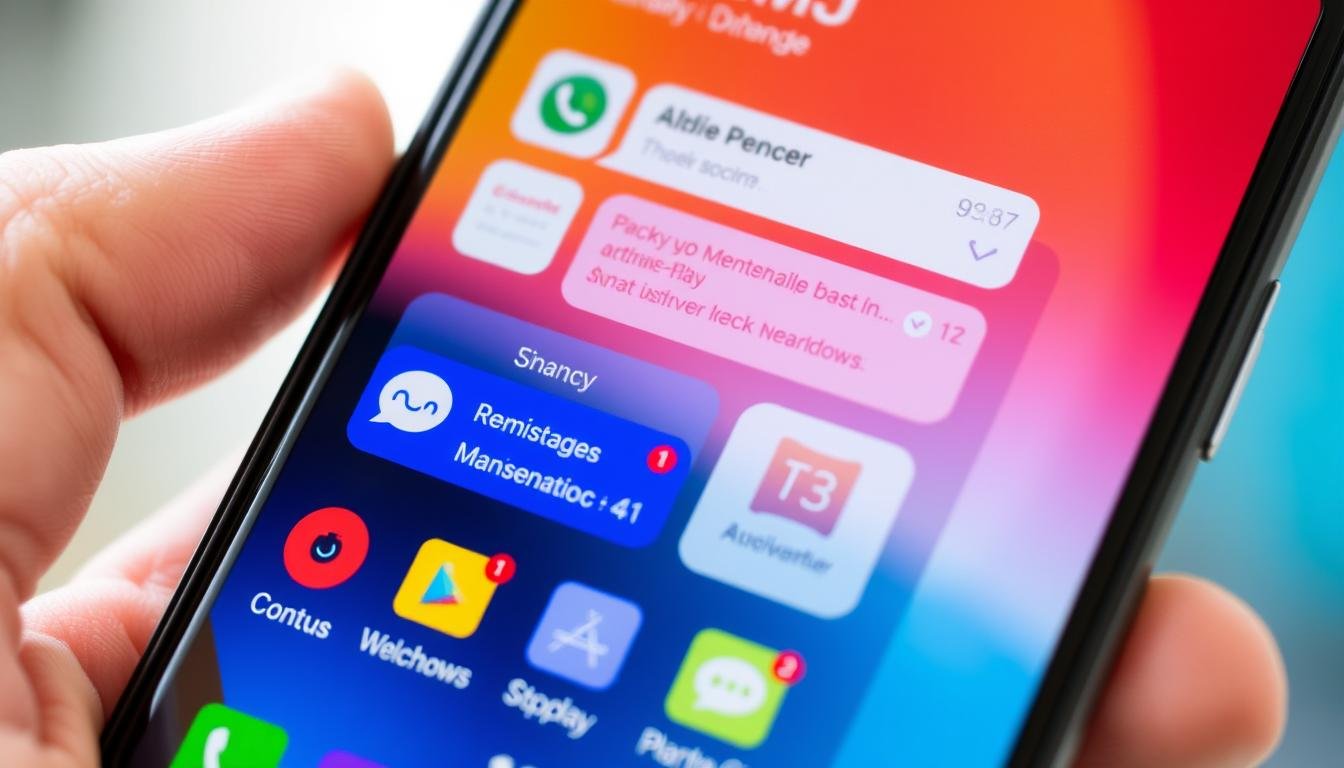
Notifications are alerts on our smartphones that tell us about new messages and updates. They help us stay connected and informed. But, if not managed well, they can distract us and lower our productivity.
What are Notifications?
Notifications are short messages on our phone screens. They can tell us about new emails, social media updates, or reminders. They keep us in touch with the digital world.
Why Customize Notifications?
Customizing notifications helps us focus on what’s important. It lets us ignore distractions and stay productive. This makes our phone use more efficient and enjoyable.
For instance, Android 12 changes icon colors based on app settings. Android 7.0 shows more text without icons. Android 13 makes some apps exempt from needing user consent.
Knowing how to customize notifications helps us control our digital space. We can make our smartphone fit our needs and preferences.
“Prompting users to opt-in for notifications increases user engagement and reduces perceived intrusiveness.”
Access Notification Settings on Your Device
Customizing app notifications starts with finding the notification settings on your phone. Whether you have an Android or iOS, you can find these options in your settings menu. Here, you can manage how notifications look, sound, and behave for each app, and also set global preferences.
On an Android device, here’s how to access the settings:
- Open the “Settings” app on your smartphone.
- Tap on the “Apps & notifications” or “Notifications” option.
- You’ll see a list of all apps. Pick one to change its notification settings.
- Or, tap on “Advanced” or “Notification settings” for global controls, like turning off sounds or vibrations.
For iOS users, the steps are a bit different:
- Go to the “Settings” app on your iPhone or iPad.
- Scroll down and tap on the “Notifications” option.
- You’ll see a list of apps that can send notifications. Choose one to change its settings.
- You can also adjust global settings, like allowing notifications on the lock screen.
Learning about your device’s notification settings is the first step to managing your app notifications. It helps you have a more personalized and efficient phone experience.
| Android Notification Settings | iOS Notification Settings |
|---|---|
|
|
By exploring your phone’s notification settings, you can control your app notifications. This ensures you get the important info you need without distractions.
Manage App-Specific Notification Preferences
As a smartphone user, managing app-specific notification preferences is key. You can customize these settings to control the alerts you get. This way, you only see the notifications that are important.
Turn Notifications On/Off for Specific Apps
First, decide which apps you want to get notifications from. Then, turn off the ones you don’t need. Go to your device’s settings, then the Notifications menu. There, you can manage which apps send you alerts.
Customize Notification Channels and Categories
But there’s more. You can also customize notification channels and categories for each app. This lets you choose what alerts you get. For example, you can get important messages but ignore less urgent updates. This makes your notifications fit your life better.
| Notification Feature | Description |
|---|---|
| Notification Channels | Organize app notifications into distinct categories, such as “Urgent”, “Updates”, or “Promotions”. |
| Notification Categories | Granular control over the types of alerts you receive from each app, like messages, reminders, or news. |
| Scheduled Notification Summaries | Group notifications into periodic updates, reducing interruptions throughout the day. |
Using these tools, you can control your digital life. Your smartphone will work for you, not the other way around.
Utilize Do Not Disturb Mode for Focused Work
To take your notification management to the next level, consider using the Do Not Disturb mode on your smartphone. This feature silences all incoming notifications during specific times. It lets you focus on your work or important tasks without distractions.
Set Up Do Not Disturb Schedules
You can set up customized Do Not Disturb schedules to fit your daily routine. Whether you need to block distractions during work or ensure sleep, this mode helps.
Customize Do Not Disturb Rules
You can also customize the Do Not Disturb rules to your liking. This lets you choose who or what can send you notifications, keeping your focus while still getting important updates.
“Using the Do Not Disturb mode can lead to increased productivity by reducing interruptions and distractions.”
Studies show we check our phones about 85 times a day, almost every 15 minutes. With Do Not Disturb, you can control your time and stay focused. This improves your efficiency and work results.
So, why not try it? Use the Do Not Disturb mode to minimize distractions during focused work. Your productivity and well-being will appreciate it.
How to Customize App Notifications on Your Smartphone: A Complete Guide
Customizing app notifications on your smartphone is a great way to manage your digital life. It helps you stay focused and productive. By adjusting your notification settings, you can choose what you want to see and hear.
Managing app-specific preferences is key. You can turn off notifications for certain apps or change how they notify you. This way, you get the info you need without distractions.
The Do Not Disturb mode is also useful. It silences all notifications for a set time. This is perfect for when you need to concentrate or during important events. You can set up Do Not Disturb to fit your schedule.
You can also manage your notification history and snooze them later. Adjusting how notifications look and sound on your lock screen is another option. These features help you create a notification system that works for you.
Customizing your app notifications gives you more control over your digital life. It reduces distractions and boosts your productivity. Finding the right balance between staying informed and focused is key. This guide has shown you how to do that.
| Feature | Description |
|---|---|
| Notification Customization | Users can turn notifications on or off for individual apps, as well as customize the notification channels and categories for each app. |
| Do Not Disturb Mode | Users can silence all notifications for a specified period, ensuring uninterrupted focus during important tasks or events. |
| Notification History and Snoozing | Users can manage their notification history and snooze notifications for later review. |
| Visual and Auditory Settings | Users can adjust the visual and auditory settings for their notifications, such as the appearance on their lock screen and the sound or vibration patterns. |
By customizing your app notifications, you can take control of your digital life and boost your productivity. Remember, the key is to find the right balance between staying informed and maintaining focus.
Control Notifications on Your Lock Screen
Customizing your app notifications on the lock screen is key to a better smartphone experience. You can show or hide notifications and control sensitive content. This helps you balance seeing updates and keeping your info private.
Show or Hide Sensitive Content
Privacy is crucial when it comes to lock screen notifications. You can toggle “Sensitive notifications” to decide if private info shows up. Hiding sensitive notifications keeps your data safe, even when your phone is locked.
To adjust this, go to your device’s notification settings. Look for “Sensitive notifications.” You can show all, alerts only, or hide all notifications on the lock screen.
| Notification Setting | Description |
|---|---|
| Show all notifications | Display both alerts and silent notifications, including sensitive content, on the lock screen. |
| Show alerts only | Display notifications that require your attention, such as new messages or calendar events, while hiding sensitive details on the lock screen. |
| Don’t show notifications | Completely hide all notifications on the lock screen, maintaining the highest level of privacy for your personal information. |
Managing your lock screen notifications helps you balance convenience and privacy. Review these options and pick what works best for you.
Adjust Notification Sounds and Vibrations
Changing your phone’s notification sounds and vibrations can really change how you feel about alerts. You can make your notifications fit your style, keeping you updated without too much noise or buzz.
Customizing sounds helps you tell different alerts apart. For example, you can pick a special sound for messages. This way, you know right away who’s trying to reach you, even without looking.
To change your sounds and vibes, go to your phone’s settings. Look for “Sounds and Vibration” or “Notifications.” There, you can pick sounds and vibes for each app, or for all your notifications.
Some phones let you make your own vibration patterns or pick sounds for different types of alerts. This lets you make your notifications really your own.
You can also change how loud or strong your notifications are. This is great if the default sounds or vibes are too loud, especially in quiet places.
By tweaking your notification settings, you can make your phone better and more useful. You’ll get less distracted and only get the alerts that matter most to you.
| Feature | Description |
|---|---|
| Customizing Notification Sounds | Set unique ringtones or alert sounds for different app notifications, helping you quickly identify the source. |
| Adjusting Vibration Settings | Customize the intensity and pattern of vibration alerts, enabling discreet notification reminders. |
| Controlling Volume Levels | Adjust the volume of your notification sounds and vibrations to suit your environment and personal preferences. |
By trying out different ways to customize your notifications, you can make your phone truly yours. It will keep you in the loop without bothering you too much.
Manage Notification History and Snoozing
Today’s world is all about staying productive and focused. Smartphones have tools to help you manage your notifications. You can now control your alerts and snooze them when needed.
Looking at your notification history can show you what’s important. It helps you see patterns and focus on what really needs your attention. To see your history on Android 14 or later, go to the Notifications section in your settings.
The snooze feature is a big help for notification snoozing. It lets you pause alerts, giving you time to focus without missing out on important ones. It’s great for when you’re busy or just need a break from notifications.
Using these notification history management and snoozing tools can make your digital life better. They help you stay focused and in control. Try them out for a more productive and intentional phone use.
“Take control of your digital life by mastering the art of notification management.”
Conclusion
Customizing app notifications has changed my digital life for the better. I’ve learned to manage my phone’s alerts, making my life more productive. This guide helped me sort out what’s important and ignore the rest.
Now, I focus better and enjoy a more balanced digital world. It’s all thanks to mastering how to handle notifications.
Effective notification management brings big benefits. It can make users stick around 3 to 10 times longer. Personalized alerts can even boost in-app purchases by 48%.
Android and iOS users are open to these changes. They opt-in at rates of 91% and 44%, showing they value these updates.
I’m always looking to improve my notification settings. I want to stay informed without getting distracted. Using in-app alerts and Do Not Disturb modes helps me stay on track.
With these tools, I only get alerts for what’s really important. This lets me focus on what matters most. I’m on my way to a more fulfilling digital life.